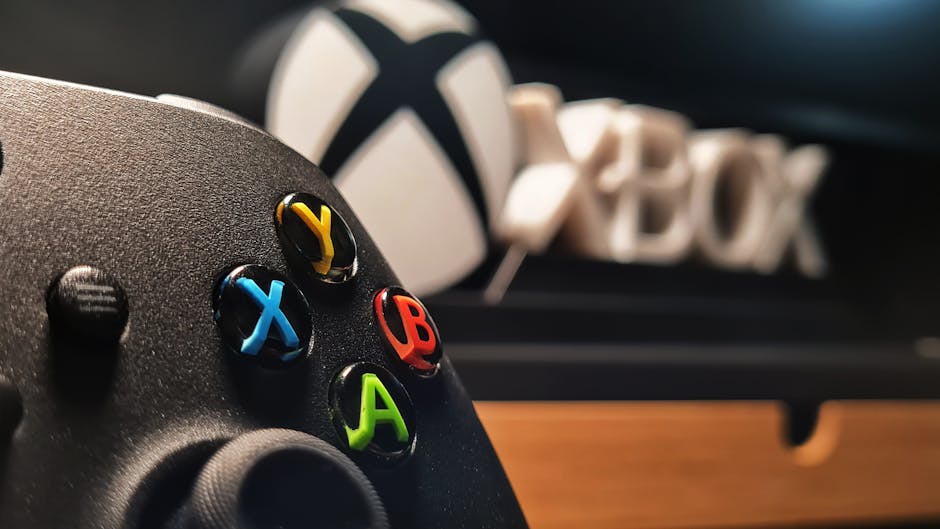
Overview of Xbox Console\
\
The Xbox brand has been a cornerstone of American living rooms since Microsoft first launched the original console in 2001. Back then, the goal was simple: bring the power of PC gaming into a living room format that anyone could enjoy. That ambition paid off. Xbox quickly became a serious competitor to PlayStation and Nintendo, carving out a loyal fanbase in the United States and around the world.\
\
Today, the Xbox Series X and Xbox Series S represent the fourth generation of this hardware lineage. The Series X is the flagship model, delivering 12 teraflops of graphical power, a custom AMD processor, and a 4K Blu-ray drive. The Series S, on the other hand, is the digital-only, budget-friendly alternative designed for 1440p output. Both consoles share the same architecture, which means game optimization is consistent across both machines.\
\
Compared to competing consoles, Xbox holds a distinct advantage through its **Game Pass** subscription service and its commitment to **backward compatibility**. If you own an older Xbox, chances are your library will carry forward on newer hardware. This makes the platform particularly attractive to gamers who have accumulated years of digital purchases across multiple console generations.\
\
Key Features of Xbox Console\
\
Powerful Hardware Specifications\
\
The Xbox Series X is built around a 3.8 GHz AMD Zen 2 CPU paired with 16 GB of GDDR6 RAM. Of that RAM, 13.7 GB is dedicated to gaming, delivering enough headroom for 4K textures, high frame rates, and rapid load times. The custom NVMe SSD inside the console reduces texture pop-in dramatically — you\’ll notice it most in open-world games where traditional hard drives struggle to keep up. Quick Resume is another flagship feature, allowing you to suspend multiple games and flip between them without losing progress.\
\
The Xbox Series S is slightly less powerful but still capable. It runs the same CPU at a slightly lower clock speed and includes 10 GB of RAM with 8 GB available to games. It outputs at up to 1440p natively and can upscale to 4K. For casual gamers or those on a tighter budget, the Series S is a practical entry point into the current generation of gaming.\
\
Exclusive Games for Xbox\
\
Xbox\’s first-party studio lineup is stronger than ever. **Halo Infinite**, **Forza Horizon 5**, **Starfield**, and **Star Wars Jedi: Survivor** showcase what the platform can do with its hardware. Microsoft has invested heavily in acquiring studios like Bethesda, Obsidian, and Double Fine, meaning the exclusive library is expanding rapidly. Game Pass subscribers get access to all first-party titles on day one, which is a significant value proposition compared to buying each game individually.\
\
Backward Compatibility with Past Xbox Games\
\
One of Xbox\’s greatest strengths is how seriously it takes your gaming history. The Xbox Series X and Series S can run games from the original Xbox, Xbox 360, and Xbox One. Hundreds of titles have been optimized for newer hardware, with higher frame rates, better resolution, and HDR support applied retroactively. Titles like **Red Dead Redemption**, **Mass Effect**, and **The Elder Scrolls V: Skyrim** look noticeably better on modern hardware, making it a compelling reason to stick within the Xbox ecosystem.\
\
Xbox Gaming Tips and Tricks\
\
How to Set Up Your New Xbox Console\
\
Setting up a new Xbox takes about 20 minutes, but a few steps can make the experience smoother. First, connect the console to your TV using the included HDMI cable, then plug in the power supply and press the Xbox button on the front. During the initial setup, sign in with your Microsoft account — this ties your profile, achievements, and Game Pass subscription to the console. Make sure your internet connection is stable before downloading updates, as a weak Wi-Fi signal can cause long download times.\
\
Once the dashboard loads, go to **Settings > System > Console info** to check your storage allocation. The Xbox Series X has a 1 TB internal SSD, but only about 800 GB is available after the operating system. If you plan to install many large games, consider an external USB 3.1 drive or investing in Seagate\’s official expansion card for additional storage.\
\
Optimizing Your Xbox\’s Performance\
\
A few tweaks in the settings menu can improve your gaming experience noticeably. First, navigate to **Settings > General > Volume & audio output** and set your TV\’s audio format to Bitstream Out for Dolby Atmos or DTS:X if your setup supports it. This ensures you\’re getting the full benefit of spatial audio in supported games. Second, go to **Settings > General > Display & sound > Video modes** and enable **Allow 50Hz** if you play games with framerate caps tied to European broadcast standards.\
\
For performance in online multiplayer, a wired Ethernet connection is almost always better than Wi-Fi. If your router is far from your console, consider a **powerline Ethernet adapter** — it uses your home\’s electrical wiring to deliver a stable connection without running long cables across the room. Latency in shooters and fighting games can be the difference between a win and a loss, so this is one upgrade worth making.\
\
How to Find and Use Hidden Features\
\
The Xbox dashboard has several features that aren\’t immediately obvious. Pressing the Xbox button on your controller opens the guide, where you can quickly access Party chat, screenshots, and settings without pausing your game. The **Screenshot** and **Game DVR** tools capture your best moments — go to **Settings > Preferences > Capture** to adjust the resolution and duration of clips.\
\
Another underused feature is **Keyboard & Mouse support**. Some games, particularly strategy and simulation titles, allow you to connect a USB keyboard and mouse for more precise control. Check individual game settings to see if this option is available. Finally, the **Family Settings** tab lets parents set screen time limits, restrict content, and monitor gaming activity — useful if you share your console with younger siblings.\
\
Common Xbox Gaming Issues and Solutions\
\
Troubleshooting Common Hardware and Software Problems\
\
Every console generation faces its share of issues, and the Xbox Series consoles are no exception. One of the most common complaints is excessive fan noise during gameplay. This can be caused by dust buildup inside the console, poor ventilation, or a demanding game pushing the hardware hard. To reduce fan noise, make sure your Xbox has at least four inches of clearance on all sides and is placed on a flat, hard surface rather than carpet or a soft shelf.\
\
If your console is freezing or crashing frequently, the first step is to check for system updates. Go to **Settings > System > Updates** and ensure you\’re running the latest version of Xbox OS. If the issue persists, try a full power cycle: hold the Xbox button for 10 seconds to turn the console off completely, unplug the power cable, wait 30 seconds, and plug it back in. This clears cached data that can cause instability over time.\
\
How to Fix or Avoid Performance Issues\
\
Reduced frame rates and stuttering can often be traced to network congestion or a poorly optimized game. If you\’re experiencing consistent frame drops, check the **Game Bar** (press the Xbox button + G) to monitor your frame rate and GPU usage in real time. Some games also allow you to toggle **Variable Refresh Rate (VRR)** in the console settings under **Display & sound > Video modes** — enabling VRR can smooth out minor performance dips by synchronizing the display\’s refresh rate with the game\’s output.\
\
Another common cause of performance issues is a nearly full hard drive. When storage runs low, the console can\’t cache assets efficiently, leading to longer load times and stuttering during gameplay. Delete games you no longer play by navigating to **Settings > Devices & connections > Storage** and removing titles to free up space.\
\
Solving Control and Calibration Issues\
\
Controller drift — where the thumbstick registers movement even when untouched — is a known issue on modern consoles, including Xbox. If you notice your character moving without input, there are a few steps to try before replacing the controller. First, go to **Settings > Devices & connections > Accessories** and run the **Xbox Accessories app**. This utility lets you update firmware, adjust stick sensitivity, and remap buttons on supported controllers.\
\
Calibrating your controller in the app can reduce the severity of drift by deadening the outer range of thumbstick movement. If the problem persists, cleaning around the base of the stick with compressed air can remove debris that may be interfering with the sensor. As a last resort, Microsoft\’s warranty covers controller defects for one year from purchase — contact Xbox Support to explore replacement options.\
\
Xbox Accessories and Add-Ons\
\
Must-Have Accessories for Every Xbox Owner\
\
A quality headset is the single best investment you can make beyond the console itself. The **Xbox Wireless Headset** is officially licensed and delivers solid stereo audio with a comfortable over-ear design. It connects directly to the console without a USB dongle, and the microphone quality is clear enough for competitive chat. If you want a more immersive experience, look for headsets that support **Dolby Atmos for Headphones**, which adds spatial awareness to supported games — you\’ll hear enemies approaching from specific directions, which is a genuine competitive advantage in multiplayer shooters.\
\
A charging dock is another practical accessory. Lithium-ion batteries in rechargeable battery packs degrade over time, and a dock keeps your backups charged and ready. Look for a dock with **low-voltage charging** to extend battery lifespan compared to standard USB charging rates.\
\
How to Choose the Right Add-Ons for Your Gaming Needs\
\
Not every accessory is right for every player. If you primarily play racing games, a **steering wheel and pedal set** will dramatically improve your experience — the Thrustmaster T150 is a popular mid-range option that works well with Forza titles. If fighting games are more your style, a **fight stick** with a Sanwa-style stick and buttons gives you the precision and button layout that competitive players prefer.\
\
For families sharing a console, additional **controller packs** are essential — having two or three charged controllers on hand prevents the \\
Explore more xbox guides on our site.
Top Product Recommendations
| Product Name | Rating | Key Feature | Est. Price | Action |
|---|---|---|---|---|
| Best Xbox Pick | ★★★★★ | Top-rated overall | $25–$45 | Check Lowest Price on Amazon |
| Budget Xbox Option | ★★★★☆ | Great for beginners | $12–$28 | Check Lowest Price on Amazon |
| Premium Xbox Choice | ★★★★☆ | Pro-level results | $50–$90 | Check Lowest Price on Amazon |
Affiliate Disclosure: This post contains affiliate links. We may earn a commission if you buy through our links, at no extra cost to you.


Leave a Reply