Xbox Series X and Series S Overview
Microsoft’s Xbox Series X and Series S represent the latest generation of gaming consoles, delivering unprecedented performance and value to gamers worldwide. The Xbox Series X stands as the flagship model, featuring 12 teraflops of processing power and native 4K gaming capabilities. Meanwhile, the Xbox Series S offers an affordable entry point into next-generation gaming at 1440p resolution.
The Series X targets enthusiasts seeking maximum performance with its custom AMD Zen 2 processor and RDNA 2 graphics architecture. It includes a 4K Blu-ray drive and 1TB of fast NVMe SSD storage. The Series S focuses on digital gaming with no disc drive, 512GB storage, and a significantly lower price point that makes next-gen gaming accessible to more players.
Both consoles support ray tracing, 120fps gaming, and Variable Rate Shading for enhanced visual fidelity. The key difference lies in target resolution and storage capacity, with the Series X delivering true 4K experiences while the Series S optimizes for 1440p gaming with upscaling capabilities.
Backward Compatibility and Game Pass
Xbox Series X and S excel in backward compatibility, supporting thousands of games from previous Xbox generations. The consoles can play original Xbox, Xbox 360, and Xbox One titles with enhanced performance through Auto HDR and improved frame rates. Many older games run better than ever before thanks to the powerful hardware acceleration.
Xbox Game Pass Ultimate transforms your console into a gaming paradise with access to over 400 titles across all genres. The service includes day-one access to first-party Microsoft exclusives, EA Play membership, and cloud gaming capabilities. Subscribers can download games directly to their console or stream them via Xbox Cloud Gaming.
The backward compatibility extends beyond just running games – many titles receive visual enhancements automatically. Features like Quick Resume work with backward compatible games, allowing you to switch between multiple titles instantly without losing progress.
Controller and Accessories
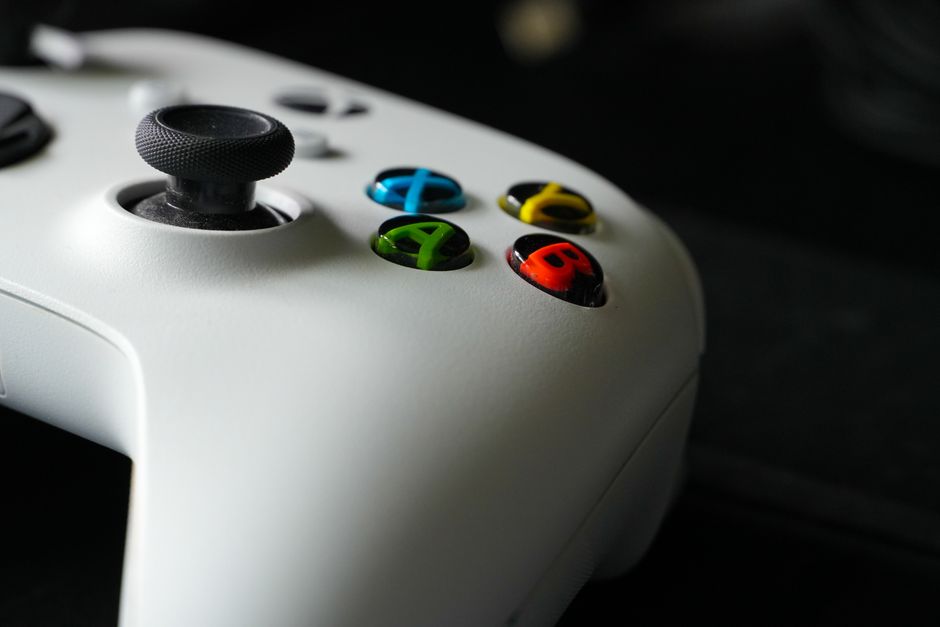
The Xbox Wireless Controller for Series X and S introduces subtle but meaningful improvements over its predecessor. The new controller features a refined D-pad with improved tactile feedback, textured grips on the triggers and bumpers, and a dedicated Share button for capturing screenshots and videos. The controller maintains the same familiar layout while adding enhanced precision and comfort.
Essential accessories include the Xbox Stereo Headset for immersive audio, offering spatial sound support and comfortable over-ear design. The Seagate Storage Expansion Card provides additional 1TB of storage that matches the console’s internal SSD speed. For competitive gaming, consider the Xbox Elite Wireless Controller Series 2 with its customizable paddles, adjustable tension thumbsticks, and hair triggers.
The Play and Charge Kit keeps your controller powered during extended gaming sessions, while the Xbox Wireless Adapter allows PC gaming with the same controller. These accessories enhance your overall gaming experience and provide flexibility across different gaming scenarios.
Setting Up and Getting Started
Unboxing your Xbox Series X or S reveals a streamlined setup process designed for quick entry into gaming. Connect the power cable and HDMI cord to your TV, then power on the console to begin initial configuration. The setup wizard guides you through language selection, network connection, and system updates that ensure optimal performance.
Creating or signing into your Microsoft account unlocks the full Xbox ecosystem, including your game library, achievements, and social features. Enable automatic updates to keep your console current with the latest features and security improvements. The initial setup typically takes 15-20 minutes, depending on your internet connection speed.
Configure your display settings to match your TV’s capabilities, enabling 4K output on Series X or 1440p on Series S. Adjust HDR settings if your display supports it, and test audio output to ensure proper surround sound configuration for the best gaming experience.
Optimize Performance and Settings
Maximizing your Xbox performance begins with understanding the graphics options available for each game. Many titles offer performance modes that prioritize frame rate over resolution, while quality modes emphasize visual fidelity. Experiment with these settings based on your preferences and display capabilities.
Manage your storage effectively by utilizing the Quick Resume feature, which keeps up to six games suspended in memory for instant switching. Move less frequently played games to external storage to free up internal SSD space for your current favorites. The Series S benefits particularly from storage management due to its smaller internal drive.
Configure automatic updates for games and system software to ensure optimal performance without manual intervention. Enable developer mode if you’re interested in game development or emulation, though this requires a developer account and may impact some console features.
| Feature | Xbox Series X | Xbox Series S |
|---|---|---|
| Target Resolution | 4K | 1440p |
| Storage | 1TB | 512GB |
| Disc Drive | Yes | No |
| Price Range | $499 | $299 |
| GPU Performance | 12 TFLOPS | 4 TFLOPS |
Troubleshooting Common Issues
Common Xbox Series X and S issues often relate to network connectivity, game installation problems, or controller synchronization. If your console won’t connect to Xbox Live, restart your router and console, then test your network connection through the settings menu. Clear the console’s cache by holding the power button for 10 seconds while unplugged.
Game installation issues typically resolve by clearing local saved games, restarting the console, or freeing up storage space. If a specific game won’t launch, check for updates or reinstall the problematic title. Controller connectivity problems usually fix with a simple re-pairing process through the settings menu.
Contact Xbox Support when hardware malfunctions occur, such as overheating, disc drive failures on Series X, or persistent system crashes. Document error codes and symptoms to expedite the support process. Most software issues resolve through system resets or factory restoration when necessary.
Gaming on Xbox Series X and Series S: Tips and Tricks
Master the Share button on your controller to capture memorable gaming moments instantly. Press once for screenshots, hold for video recordings, or double-tap to start/stop longer recording sessions. These captures automatically save to your Xbox profile and can be shared across social media platforms.
Quick Resume revolutionizes how you play multiple games, allowing seamless switching between titles without losing progress. The feature works with backward compatible games and newer titles, maintaining your exact position even after console restarts. Utilize this feature to sample different games without commitment to lengthy play sessions.
Customize your Xbox dashboard for quick access to favorite games, apps, and features. Pin frequently used items to the home screen and organize your game library with custom groups. The Guide button provides instant access to notifications, messages, and system functions without leaving your current game.
Expanding Your Gaming Library
The Xbox Game Store offers thousands of titles across all genres, from indie darlings to AAA blockbusters. Take advantage of seasonal sales, weekly deals, and Xbox Game Pass discounts to build an extensive library economically. Digital games provide convenience and Quick Resume compatibility.
Xbox Game Pass represents exceptional value for discovering new games across three console generations. The service regularly adds new titles and removes others, creating urgency to try games you might otherwise skip. Use the Xbox mobile app to install games remotely, ensuring they’re ready when you arrive home.
Organize your growing library using the My Games & Apps section, which allows sorting by recently played, title, size, or installation status. Create custom groups for different game types or family members sharing the console. This organization becomes increasingly valuable as your library expands beyond dozens of titles.
Frequently Asked Questions
Q: Can I use my old Xbox One controllers with the Xbox Series X or Series S?
A: Yes, Xbox One controllers are fully compatible with both Series X and Series S consoles. However, you’ll miss out on the new features like the improved D-pad, Share button, and enhanced haptic feedback available in the newer Xbox Wireless Controller.
Q: How do I transfer my games and save data from my Xbox One to the Xbox Series X or S?
A: Your save data automatically transfers through Xbox Live cloud saves when you sign into your Microsoft account. For games, you can use the Xbox app to remotely install titles, transfer via external USB drive, or use network transfer between consoles on the same network.
Q: What is the difference between Xbox Game Pass and Xbox Game Pass Ultimate?
A: Xbox Game Pass provides access to over 100 games on either console or PC, while Xbox Game Pass Ultimate includes console and PC access, Xbox Live Gold membership, EA Play, and Xbox Cloud Gaming for streaming games to mobile devices and browsers.
Top Product Recommendations
| Product Name | Rating | Key Feature | Est. Price | Action |
|---|---|---|---|---|
| Top-rated Xbox Series X console | ★★★★★ | Editor-recommended Xbox Series X console from this guide | $18–$42 | Check Lowest Price on Amazon |
| Best-value Xbox Wireless Controller | ★★★★☆ | Affordable Xbox Wireless Controller — strong everyday results | $12–$28 | Check Lowest Price on Amazon |
| Premium Xbox Game Pass Ultimate subscription | ★★★★☆ | Higher-end Xbox Game Pass Ultimate subscription for visible, lasting results | $45–$95 | Check Lowest Price on Amazon |
Affiliate Disclosure: This post contains affiliate links. We may earn a commission if you buy through our links, at no extra cost to you.
Leave a Reply