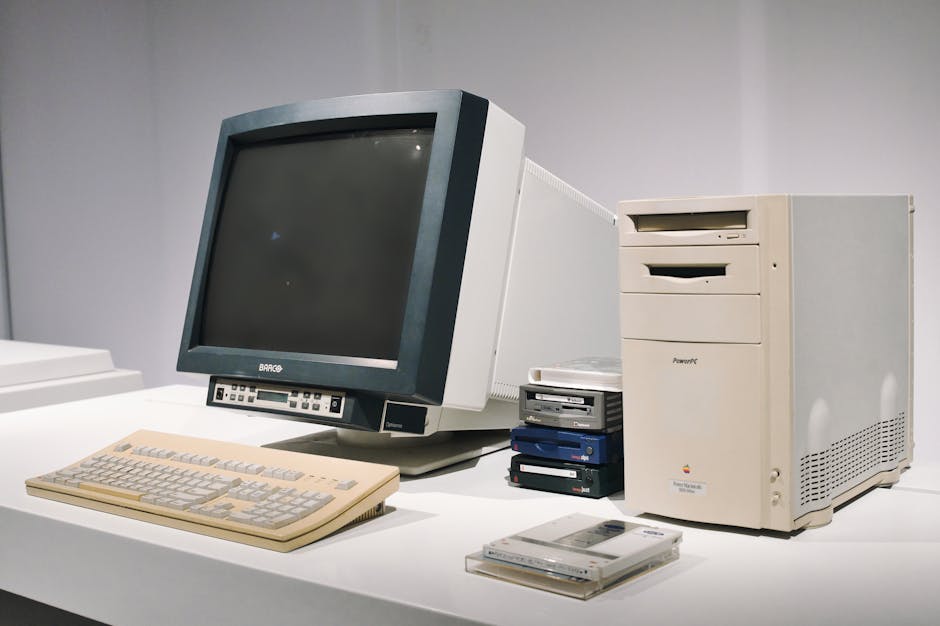
Overview of PC Gaming
PC gaming remains one of the most rewarding ways to play video games today. Building or upgrading a gaming PC gives you unmatched control over every aspect of your experience, from frame rates and resolution to input latency and visual fidelity. Whether you are new to the platform or a seasoned player returning to desktop gaming, understanding the fundamentals of PC hardware and software will help you get more out of every session.
The appeal of PC gaming over consoles comes down to three core advantages: **customizability**, **performance**, and **longevity**. Console games are locked to fixed hardware specifications, but a PC lets you swap out individual components as technology advances. You can start with a budget build and upgrade your graphics card or add more RAM over time without replacing the entire system. PC games also tend to cost less during sales, and platforms like Steam, GOG, and Epic Games frequently offer deep discounts throughout the year.
Before diving into hardware recommendations and performance tweaks, it helps to set realistic goals. Ask yourself what types of games you want to play, what resolution and refresh rate your monitor supports, and how much you are comfortable spending. This guide covers everything from choosing the right components to troubleshooting common issues, so you can build or optimize a PC gaming setup that fits your needs and your budget.
- PC gaming offers superior control over performance, graphics, and input latency
- Individual components can be upgraded over time, extending the life of your investment
- Game libraries on PC are typically cheaper and more diverse than console-exclusive catalogs
Choosing the Right PC Hardware
Selecting the right hardware is the foundation of any great PC gaming setup. The two most critical components are the **processor (CPU)** and the **graphics card (GPU)**. These two parts do the heavy lifting in games, and balancing them correctly prevents bottlenecks that waste money and reduce performance.
For the CPU, modern gaming workloads benefit most from strong single-core performance. Processors like the AMD Ryzen 5 5600X or the Intel Core i5-12400 offer exc nt gaming performance at a reasonable price point. If you want to stream gameplay or run background applications while gaming, stepping up to a Ryzen 7 or Intel Core i7 processor gives you extra headroom. Avoid overspending on a high-end CPU if your budget also needs to cover a quality GPU, because the graphics card typically has a larger impact on in-game frame rates.
The GPU is where most of your gaming performance lives. Modern options from AMD and NVIDIA range from mid-range cards capable of 1440p gaming at high settings to flagship models that push 4K resolution with ray tracing enabled. Match your GPU to your monitor: a 1080p 144Hz display does not need the same power as a 4K 144Hz ultrawide. Investing in more GPU than your monitor can render is one of the most common budget mistakes new PC builders make.
RAM and storage round out the core hardware stack. **16GB of DDR4 or DDR5 RAM** is the sweet spot for modern gaming in 2025. Faster RAM speeds and lower latencies provide small but measurable gains in CPU-sensitive titles. For storage, an NVMe SSD is non-negotiable for quick load times and smooth open-world gameplay. A 1TB drive gives you enough room for your operating system, several full games, and common applications.
| Component | Budget Option | Mid-Range Option | High-End Option |
|---|---|---|---|
| CPU | Ryzen 5 5600X | Intel i5-12400 | Ryzen 7 7800X3D |
| GPU | RTX 4060 / RX 7600 | RTX 4070 / RX 7700 XT | RTX 4080 Super |
| RAM | 16GB DDR4-3200 | 32GB DDR5-5600 | 32GB DDR5-6400 |
| Storage | 1TB NVMe SSD | 2TB NVMe SSD | 2TB+ NVMe SSD |
Optimizing PC Gaming Performance
Hardware alone does not guarantee smooth gameplay. Software configuration, driver management, and in-game settings all play a major role in how your PC performs. Taking time to optimize these areas can deliver significant frame rate improvements without spending a single dollar on new parts.
**Keeping your graphics drivers updated** is the single most impactful maintenance step you can take. Both NVIDIA and AMD release driver updates specifically optimized for new game releases, and outdated drivers are a leading cause of crashes, poor performance, and visual glitches. Open the GeForce Experience app or AMD Adrenalin software and check for updates before starting a new game for the first time.
Overclocking your CPU and GPU can extract additional performance, but it requires caution and proper cooling. Most modern processors and graphics cards have **factory-enabled boost clocks** that already push close to their safe limits. If you want to overclock, increase clock speeds gradually and monitor temperatures using tools like MSI Afterburner or HWiNFO. Never overclock without adequate case airflow and a quality CPU cooler, because excessive heat shortens component lifespan and causes instability.
Inside individual games, the graphics settings menu is your primary performance-tuning interface. Start by setting your **rendering resolution** to match your monitor’s native resolution. From there, adjust texture quality, shadow detail, and anti-aliasing settings based on the visual elements that matter most to you in each title. Competitive gamers often reduce settings like ambient occlusion and reflections to maximize frame rates, while single-player enthusiasts may prioritize visual richness over raw speed.
- Use NVIDIA GeForce Experience or AMD Adrenalin to keep drivers current
- Enable **hardware-accelerated GPU scheduling** in Windows graphics settings for lower latency
- Disable unnecessary background processes before gaming to free up CPU resources
Common PC Gaming Bugs and Glitches
Even the most powerful gaming PC is not immune to software issues. Understanding the most frequent problems and their causes helps you resolve them quickly when they arise.
**Texture flickering and pop-in** occurs when the game loads assets slower than the camera moves. This is common in open-world titles running from a hard drive instead of an SSD. Installing games on your primary NVMe drive typically eliminates this issue. Some texture bugs also stem from corrupted shader caches, which can be fixed by verifying game files through Steam, Epic, or your launcher of choice.
**Game-breaking bugs** range from quest markers that fail to trigger to physics objects that freeze the engine. These bugs are more common in newly released titles that shipped without adequate QA testing. If you encounter a serious bug, check community forums like Reddit or the official bug report boards for known issues and community-developed fixes. Waiting for a patch is sometimes the only reliable solution, but workarounds exist for many common problems.
**Crashes and freezes** during gameplay usually point to one of three causes: driver instability, insufficient RAM, or overheating. Monitor your GPU and CPU temperatures while gaming using software like NZXT CAM or Core Temp. If your GPU consistently exceeds 85°C during gaming sessions, improve your case airflow by adding intake or exhaust fans, or undervolt the graphics card using MSI Afterburner to reduce heat output without sacrificing much performance.
- Texture flickering is often solved by moving the game to an SSD
- Game-breaking bugs are frequently documented on community forums with workarounds
- Regular crashes combined with high temperatures signal a cooling or driver issue
Troubleshooting PC Gaming Issues
When something goes wrong with your PC gaming setup, a systematic approach to diagnosis saves time and frustration. Most problems fall into three categories: **hardware failures**, **software conflicts**, and **network issues**.
For hardware-related problems, listen for unusual fan noise, watch for unexpected shutdowns, and check event logs in Windows for critical errors. If your PC fails to POST (the initial boot screen does not appear), reseating your RAM sticks and graphics card often resolves contact-related failures. Try each RAM stick individually to identify a faulty module. For persistent hardware errors, stress-testing tools like Prime95 for the CPU and FurMark for the GPU can confirm whether a component is unstable under load.
**Software conflicts** are harder to diagnose but easier to fix. Background applications that intercept system calls or modify graphics settings — including overlay tools, screen recording software, and RGB control suites — frequently cause crashes or performance drops in games. Disable startup programs you do not need and test games with a clean boot by temporarily turning off non-essential services through Windows Task Manager.
Online multiplayer games introduce network-related challenges. If you are experiencing high ping or packet loss, try switching DNS servers to public options like Google DNS (8.8.8.8) or Cloudflare (1.1.1.1). Check your firewall and router settings to ensure game ports are not being blocked. For competitive titles where latency matters most, a **wired Ethernet connection** is far superior to Wi-Fi, and many gaming routers offer quality-of-service features that prioritize gaming traffic.
- Event Viewer in Windows logs critical errors that help pinpoint hardware failures
- Overlay software like Discord or NVIDIA GeForce Experience can conflict with certain games
- A wired Ethernet connection reduces ping variability compared to wireless connections
PC Gaming Accessories and Peripherals
The peripherals you choose have a direct and immediate impact on how games feel to play. While a quality mouse, keyboard, and headset do not make you a better player on their own, they reduce fatigue, improve precision, and help you perform consistently over long sessions.
A **gaming mouse** with a high-precision optical sensor and adjustable DPI is one of the best investments for any PC gamer. Look for sensors with a polling rate of 1000Hz or higher for the lowest input latency. Ergonomics matter enormously for comfort during extended play, so try different shapes and weights before committing. Many competitive players prefer lighter mice in the 60–80 gram range with textured side grips for better control.
For keyboards, the choice between mechanical and membrane switches comes down to personal preference and play style. **Mechanical keyboards** offer tactile feedback and faster actuation, which many gamers prefer for competitive titles. Different switch types — linear, tactile, and clicky — each produce a different feel and sound. Red or black linear switches are popular for gaming, while brown tactile switches provide a middle ground for gamers who also type frequently.
A quality gaming headset serves double duty for communication and immersive audio. Look for headsets with a **clear microphone**, comfortable ear cushions, and durable build quality. Surround sound support through software like Windows Sonic or Dolby Atmos enhances spatial awareness in shooter games, helping you locate enemy footsteps and movements more accurately. If you play competitively, a headset with a detachable noise-canceling microphone ensures your teammates hear you clearly even in noisy environments.
- Gaming mice with 1000Hz+ polling rates minimize input delay
- Mechanical keyboard switches vary significantly in feel — try several types before buying
- A headset with good microphone quality matters as much as audio fidelity for online play
Tips for Beginner PC Gamers
Getting started with PC gaming can feel overwhelming if you are coming from a console background. The good news is that modern Windows PCs are more plug-and-play than ever, and most games run well with default settings.
The first thing any new PC gamer should do is **enable Game Mode** in Windows 11. This feature disables background tasks and optimizes resource allocation when a game launches. Windows Game Bar also provides quick access to screen recording, performance monitoring, and audio controls without leaving your game. Simply press **Windows key + G** to open it during gameplay.
Learning the basics of **PC gaming controls** takes time, especially if you are transitioning from a gamepad. Many competitive games allow you to remap every key binding, so customize your layout to whatever feels natural. Start with default keybinds for your first few games and adjust only the bindings that consistently cause you to misinput. Binding common actions like reload and jump to accessible keys near WASD dramatically improves reaction time in fast-paced titles.
If you are building your first gaming PC on a budget, prioritize your GPU and CPU spending above all else. A quality mid-range graphics card paired with a capable processor will run the majority of modern games smoothly. Do not overspend on aesthetic components like RGB lighting or premium cases until your core hardware delivers the performance you need. Used or refurbished parts from reputable s rs can stretch a tight budget significantly without sacrificing reliability.
- Windows Game Mode reduces background interference during gameplay
- Customize keybindings gradually rather than remapping everything at once
- A quality GPU is the single most impactful upgrade for gaming performance
Advanced PC Gaming Techniques
Once you have a solid foundation, there are several advanced strategies that can elevate your PC gaming experience and give you a competitive edge in online play.
**Mastering advanced control techniques** requires deliberate practice and patience. In competitive shooters, invest time in aim training routines using tools like Aim Lab or KovaaK’s. These programs train specific skills — tracking, flick shots, and target switching — that transfer directly into real games. Practice for 15–30 minutes a day rather than longer, unfocused sessions, because deliberate repetition builds muscle memory more efficiently than casual play.
Optimizing game settings for competitive play means prioritizing **frame rate and input latency** over visual quality. In fast-paced multiplayer titles, a stable 144 frames per second at 1080p almost always beats a stuttery 60fps at 4K. Lower your render resolution, reduce shadow and ambient occlusion settings, and cap your frame rate to match your monitor’s refresh rate using in-game or NVIDIA/AMD control panel settings. This approach squeezes maximum responsiveness out of your hardware.
Modding and custom content add enormous replay value to many PC games. Titles like Skyrim, Minecraft, and Cities Skylines have thriving modding communities that have produced thousands of hours of additional content, many of it free. Installing mods requires the appropriate mod manager for each game — Nexus Mod Manager and Vortex are popular choices. Always download mods from reputable sources to avoid malware, and back up your save files before installing major mod packs that modify core game files.
- Aim training software improves precision skills that apply across multiple titles
- Capping frame rates to your monitor’s refresh rate reduces screen tearing and input lag
- Nexus Mod Manager and Vortex are safe, widely-used modding tools for PC games
Frequently Asked Questions (FAQ)
Q: What are the most common PC gaming bugs and glitches?
The most frequently encountered issues include texture flickering, shader compilation errors, game crashes to desktop, and save file corruption. Most of these problems stem from outdated drivers, insufficient storage space, or running games from a slow hard drive instead of an SSD. Verifying game files through your launcher and keeping GPU drivers updated resolves the majority of these issues without additional troubleshooting.
Q: How can I prevent or fix these performance and bug issues?
Start by installing your games on a fast NVMe SSD, keeping graphics drivers current, and verifying file integrity through Steam or your chosen platform. If crashes persist, monitor your CPU and GPU temperatures during gameplay — overheating components often cause sudden shutdowns or freezes. Disable unnecessary background applications and overlay software, and consider doing a clean driver install using DDU (Display Driver Uninstaller) for stubborn driver-related problems.
Q: What accessories and peripherals are essential for PC gaming?
At minimum, a quality gaming mouse with a high-precision sensor and a comfortable mechanical keyboard form the core of any PC gaming setup. A good headset with a clear microphone and immersive audio support is essential for online multiplayer games. These three peripherals have the most direct impact on your comfort and performance during gaming sessions, so invest in them before spending on optional upgrades like premium mousepads or monitor arms.
Top Product Recommendations
| Product Name | Rating | Key Feature | Est. Price | Action |
|---|---|---|---|---|
| Top-rated gaming PC build | ★★★★★ | Editor-recommended gaming PC build from this guide | $18–$42 | Check Lowest Price on Amazon |
| Best-value RTX 4060 graphics card | ★★★★☆ | Affordable RTX 4060 graphics card — strong everyday results | $12–$28 | Check Lowest Price on Amazon |
| Premium gaming mouse for PC | ★★★★☆ | Higher-end gaming mouse for PC for visible, lasting results | $45–$95 | Check Lowest Price on Amazon |
Affiliate Disclosure: This post contains affiliate links. We may earn a commission if you buy through our links, at no extra cost to you.
Leave a Reply