Overview
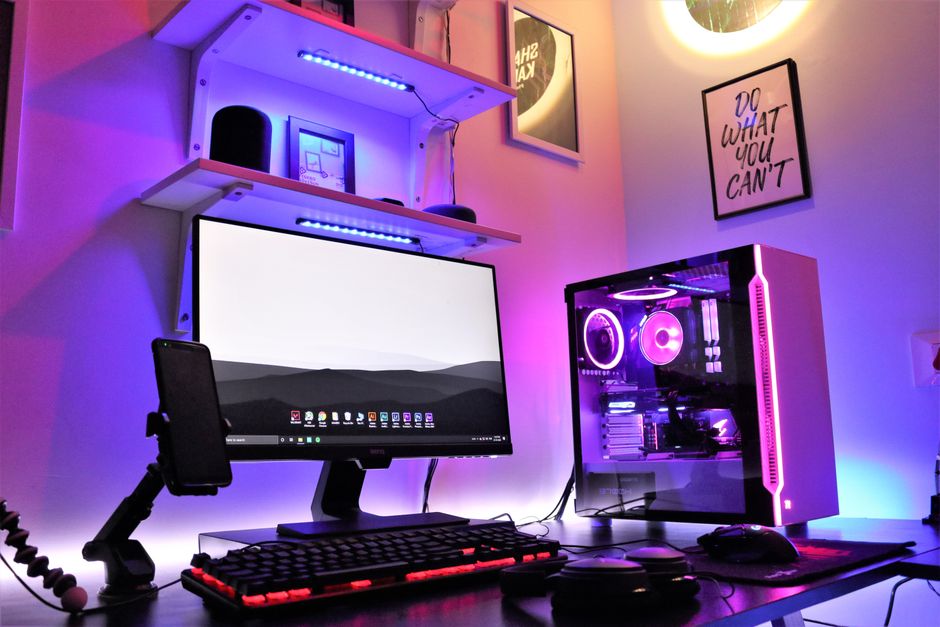
PC gaming sits at the heart of modern entertainment for millions of American players. Unlike console gaming, a gaming PC gives you complete control over every piece of hardware and software running your experience. Whether you are just getting started or looking to upgrade an existing rig, understanding how all the components work together is essential for getting the most out of your setup.
The world of PC gaming breaks down into two main pillars: the physical hardware inside your tower, and the software that brings your games to life. Hardware includes everything from your processor and graphics card to your monitor and keyboard. Software covers your operating system, drivers, game library, and performance utilities. When these two pillars are balanced correctly, your PC becomes one of the most powerful gaming platforms available, offering superior graphics, faster frame rates, and deeper customization than most consoles can match.
This guide walks through every major aspect of PC gaming. We cover the essential hardware components, the software stack you need to maintain, practical optimization tips, common problems and how to fix them, performance benchmarking, and the accessories that make long gaming sessions comfortable and competitive. By the end, you will have a clear picture of what a gaming PC involves and how to set yours up for success.
PC Gaming Hardware
The hardware inside your PC is the engine that powers every game you run. Each component plays a specific role, and choosing the right parts for your budget and goals makes all the difference.
**CPU (Central Processing Unit)** serves as the brain of your computer. It handles game logic, physics calculations, and AI processing. For modern PC gaming, a processor with at least six cores is recommended. AMD’s Ryzen 5000 and 7000 series, as well as Intel’s 12th and 13th Gen Core processors, offer exc nt gaming performance without breaking the bank.
**GPU (Graphics Processing Unit)** is arguably the most important piece of hardware for gaming. It renders every pixel on your screen and determines your resolution, graphics quality, and frame rate. NVIDIA GeForce RTX 4000 series and AMD Radeon RX 7000 series cards are current-generation options that handle demanding titles at high settings. Pairing the right GPU with your CPU ensures no bottleneck slows your performance.
**RAM (Random Access Memory)** stores data your PC needs quick access to while running games and background applications. 16 gigabytes is the modern baseline for PC gaming, with 32 gigabytes offering headroom for streaming, content creation, or heavily modded games. Speed and latency matter too, with DDR5 and DDR4 modules both supporting gaming workloads depending on your motherboard.
**Storage** determines how fast games load and how much you can keep installed. Solid-state drives, or SSDs, are the standard for gaming PCs in 2025. NVMe SSDs offer the fastest read and write speeds through the PCI Express lanes, while SATA SSDs provide a budget-friendly alternative that still crushes traditional hard drives in load times.
**Motherboard** connects every component in your system. It determines which CPUs, RAM modules, and expansion cards are compatible with your build. Choose a board with enough USB ports, PCIe slots, and M.2 connectors for your needs. Form factors like ATX, micro-ATX, and Mini-ITX dictate the physical size and expansion potential.
**Power Supply Unit (PSU)** feeds electricity to every component. Picking a reliable unit with enough wattage is critical for system stability. A 750-watt 80+ Gold rated PSU covers most mid-range gaming builds, while high-end systems with powerful graphics cards may need 850 watts or more.
PC Gaming Software
Hardware alone is not enough. The software layer running on your PC determines how efficiently your components operate and how smooth your gaming experience feels day to day.
**Operating System** is the foundation. Windows 10 and Windows 11 are the two dominant choices for PC gaming. Windows 11 offers DirectStorage support and other gaming-focused optimizations, but Windows 10 remains a solid and widely supported option. Most American gamers use Windows 11 on newer hardware for the latest feature set.
**Drivers** are the bridge between your hardware and your games. Graphics card drivers from NVIDIA and AMD receive regular updates that patch bugs, improve performance, and add compatibility with new game releases. Keeping your GPU drivers up to date is one of the simplest ways to boost frame rates and fix visual glitches. Chipset and audio drivers also deserve attention for a complete, stable system.
**Games** are obviously central, but managing your library matters too. Platforms like Steam, Epic Games Store, GOG, and Xbox PC app give you access to thousands of titles. Organizing your library, managing storage across drives, and keeping update schedules in check all fall under the software side of PC gaming.
**Utilities** help you monitor, tweak, and troubleshoot your system. Programs like MSI Afterburner let you monitor GPU temperatures and clock speeds in real time. HWiNFO and Core Temp track your CPU and system health. Overlay tools from NVIDIA GeForce Experience or AMD Software Adrenalin Edition let you record gameplay, take screenshots, and stream directly from your desktop.
PC Gaming Tips
Getting the most out of your PC gaming setup is about consistent maintenance and smart settings management. A few deliberate habits keep your system running smoothly for years.
**Optimizing Settings** starts inside each game. Graphics menus offer sliders for texture quality, shadow resolution, anti-aliasing, and more. A good strategy is to start at ultra settings and work downward until you hit your target frame rate, usually 60 or 144 frames per second depending on your monitor. Pair that with NVIDIA’s DLSS or AMD’s FSR upscaling technologies when available, as they render games at a lower internal resolution and upscale visually with minimal quality loss.
**Updating Drivers** regularly prevents a host of problems. Set a reminder to check for new GPU drivers every few weeks, especially after major game patches. Clean installations using DDU (Display Driver Uninstaller) occasionally help eliminate conflicts when upgrading to a new driver version.
**Managing Power Usage** protects your components and saves energy. Enable your PC’s power plan settings to prefer maximum performance when gaming, but allow sleep and hybrid modes for idle periods. High-end systems benefit from UPS battery backup units to protect against power surges and unexpected shutdowns.
**Monitoring Temperatures** keeps your system healthy under load. Watch CPU and GPU temps using utilities during extended gaming sessions. Temperatures consistently above 85 degrees Celsius during gameplay may warrant better airflow, additional case fans, or better thermal paste application.
Common Issues in PC Gaming
Every PC gamer encounters technical hiccups at some point. Knowing how to diagnose and resolve the most frequent problems saves hours of frustration.
**Crashes** during gameplay usually stem from overheating, driver conflicts, or unstable overclocking. Start by checking your component temperatures with a monitoring tool. Update or roll back your graphics drivers if the crash coincides with a recent driver update. Test your RAM with tools like MemTest86 to rule out memory errors. If crashes persist, verify your game’s files through its launch platform to fix corrupted game data.
**Freezing** and hard locks where the entire system becomes unresponsive typically point to hardware strain or software conflicts. Lower your in-game graphics settings first as a quick test. Disable overlay programs like Discord screen share or browser tabs running in the background. In serious cases, stress-testing your CPU and GPU with Prime95 or FurMark can help identify unstable hardware.
**Lag** in multiplayer games has multiple potential causes. Wired Ethernet connections almost always outperform Wi-Fi for latency-sensitive titles. Close bandwidth-heavy background apps like streaming software, cloud sync services, and browser tabs running multiple websites. Check your router’s firmware and consider port forwarding for specific games to reduce matchmaking issues.
**Frame Rate Drops** during gameplay often result from thermal throttling or settings mismatches. Thermal throttling kicks in when your GPU or CPU overheats, causing clock speeds to reduce and frame rates to tank mid-session. Improve case airflow with additional intake and exhaust fans. Also verify that your power plan is set to High Performance mode in Windows, which prevents your system from reducing clock speeds during gaming.
PC Gaming Performance
Advanced users can push their PC gaming performance beyond stock settings with benchmarking and selective overclocking, while maintaining stability and longevity.
**Benchmarking** gives you baseline performance numbers to compare against. Tools like 3DMark, Unigine Heaven, and userbenchmarks.com let you measure frame rates, compute scores, and track performance over time as you upgrade or tweak your system. Run benchmarks with your game’s most demanding scenes for real-world comparisons.
**Overclocking** the CPU or GPU can extract extra performance from your hardware. Modern processors have Boost clock technology that overclocks automatically within safe thermal limits. Manual overclocking through BIOS settings gives skilled users finer control over clock speeds, voltage, and memory timings. Always increase clock speeds gradually and run stability tests after each adjustment. Overclocking generates more heat, so ensure your cooling solution can handle the additional load.
**Cooling Solutions** range from stock air coolers to custom liquid cooling loops. Air coolers with multiple heat pipes and 120-millimeter or 140-millimeter fans work well for most mid-range builds. All-in-one (AIO) liquid coolers with 240-millimeter or 360-millimeter radiators are popular for high-end systems where quiet operation and maximum cooling capacity are priorities. Keep case airflow balanced with equal parts intake and exhaust to move fresh air across all components consistently.
PC Gaming Accessories
The right accessories transform a good PC gaming setup into a great one. Peripherals and furniture affect your comfort, precision, and overall enjoyment during both short sessions and marathon gaming nights.
**Keyboard** options include membrane keyboards for budget buyers and mechanical keyboards for serious gamers. Mechanical keyboards offer tactile feedback, faster actuation, and greater durability. Switches like Cherry MX Red, Brown, and Blue each have distinct feel and sound profiles. RGB lighting and programmable macro keys add personalization and competitive advantages in complex games.
**Mouse** precision matters enormously in first-person shooters and competitive multiplayer titles. Look for a mouse with a high DPI sensor, adjustable polling rate, and a comfortable grip shape for your hand size. Many gaming mice target 800 to 3200 DPI for daily use, with higher DPI settings available for ultra-high-resolution monitors.
**Monitor** selection shapes your entire visual experience. A 144-hertz refresh rate monitor is the standard upgrade from standard 60-hertz displays, delivering noticeably smoother motion in fast-paced games. 4K monitors offer stunning detail for single-player titles, though they demand more from your GPU. 1440p monitors strike a popular balance between resolution and performance for most American gamers. Consider panel type too: IPS panels provide superior color accuracy, while VA panels offer the best contrast ratios.
| Feature | 60Hz Monitor | 144Hz Monitor | 240Hz Monitor |
|---|---|---|---|
| Refresh Rate | 60 fps max | 144 fps max | 240 fps max |
| Best For | Story games, casual play | Competitive multiplayer | Esports, pro-level FPS |
| GPU Demand | Low | Moderate | High |
| Price Range | $150–$300 | $250–$500 | $400–$800+ |
**Headset** quality directly impacts your ability to communicate with teammates and hear enemy movements. Look for headsets with surround sound, a clear microphone, and comfortable ear cushions for long sessions. Wireless headsets with low-latency 2.4GHz connections have largely replaced Bluetooth models for competitive gaming due to their superior audio synchronization.
**Chair** and ergonomic setup reduce fatigue during extended play. A proper gaming chair or an ergonomic office chair with lumbar support keeps your posture healthy during multi-hour sessions. Pair it with a desk at the right height so your arms rest comfortably on the desk surface while maintaining a neutral wrist position at the keyboard and mouse.
Frequently Asked Questions (FAQ)
Q: Can I use my PC for both gaming and work?
A: Absolutely. A well-built gaming PC handles office productivity, video conferencing, creative software, and streaming simultaneously with your game library. Just make sure your hardware has enough RAM — 16 gigabytes minimum — and a capable CPU to juggle multiple applications without stuttering during gameplay.
Q: How do I choose the right hardware for my PC gaming setup?
A: Start by setting a realistic budget and deciding which games you want to play most. Allocate the largest share of your budget to the GPU, as it has the biggest impact on game visuals and frame rates. Match your CPU and RAM to your GPU’s performance tier to avoid bottlenecks. Check component compatibility on sites like PCPartPicker before purchasing to confirm that your CPU, motherboard, and RAM all work together.
Q: What are some essential accessories for PC gaming?
A: The most impactful accessories are a mechanical keyboard with responsive switches, a precision gaming mouse with an adjustable DPI sensor, and a 144-hertz monitor that matches your GPU output. A quality gaming headset with a clear microphone rounds out the essentials for communication and immersion. Do not overlook a comfortable chair, since long gaming sessions put real strain on your back and neck without proper ergonomic support.
Q: How often should I update my graphics drivers?
A: Checking for new GPU drivers every two to four weeks is a reasonable routine for most gamers. Major game releases often trigger driver updates specifically optimized for those titles, so install updates soon after new releases if you plan to play the latest games. Skip driver updates only if you are experiencing stability with your current version and prefer to wait for early bugs to be patched.
Explore more pc guides on our site.
Top Product Recommendations
| Product Name | Rating | Key Feature | Est. Price | Action |
|---|---|---|---|---|
| Best Pc Pick | ★★★★★ | Top-rated overall | $25–$45 | Check Lowest Price on Amazon |
| Budget Pc Option | ★★★★☆ | Great for beginners | $12–$28 | Check Lowest Price on Amazon |
| Premium Pc Choice | ★★★★☆ | Pro-level results | $50–$90 | Check Lowest Price on Amazon |
Affiliate Disclosure: This post contains affiliate links. We may earn a commission if you buy through our links, at no extra cost to you.
Leave a Reply