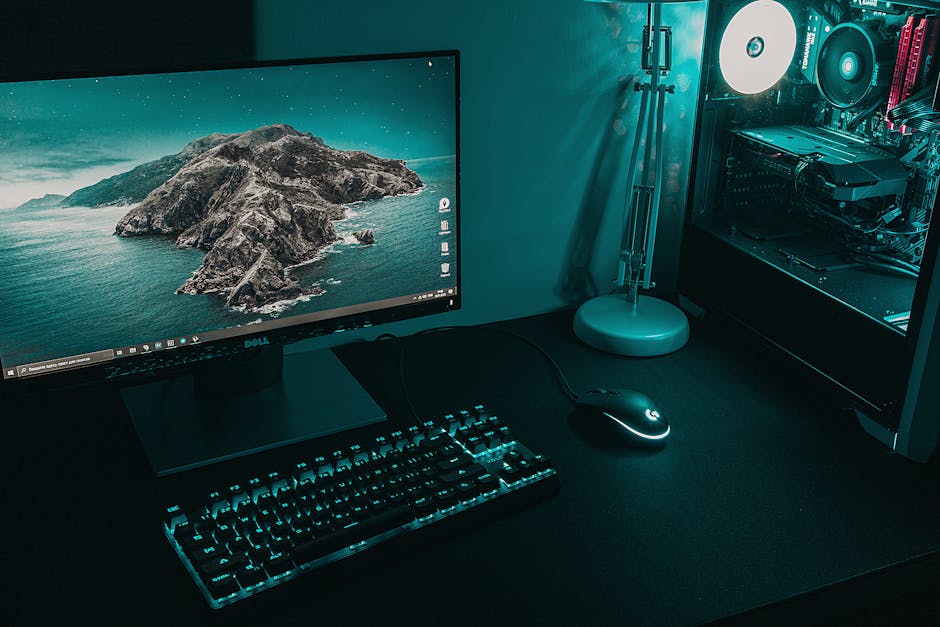
Why PC Gaming Is Worth It
PC gaming has earned its reputation as the gold standard for interactive entertainment, and for good reason. When you play on a desktop or laptop built for gaming, you gain access to a level of customization, performance, and community that most console experiences simply cannot match. The PC platform lets you fine-tune every aspect of your session — from graphics quality and frame rates to control schemes and audio mixes — all on hardware you can upgrade over time rather than replace entirely. Whether you are diving into a fast-paced first-person shooter, exploring a massive open world, or competing in an online multiplayer arena, the PC experience adapts to the way you want to play.
Choosing PC over a console also means benefiting from a richer library of titles. Digital storefronts like Steam, the Epic Games Store, GOG, and Humble Bundle give you access to thousands of games, many at deep discounts during seasonal sales. You are never locked into a single publisher’s ecosystem, and older titles remain playable as long as your hardware can handle them. This flexibility makes PC gaming one of the most rewarding hobbies you can invest in.
Beyond games themselves, PC gaming opens doors to modding communities, custom content creation, and streaming tools that let you share your progress with audiences around the world. If you have been on the fence about making the switch, this guide walks through everything you need to get started and get the most out of your setup.
Hardware Requirements and System Specs
Before you jump into any new title, it helps to understand what your machine is actually capable of. Modern PC games fall into two broad categories: those with modest demands that run on integrated graphics, and graphically intensive titles that require dedicated hardware to run smoothly.
Most current releases list their requirements in similar terms. Here is a general comparison to help you gauge where your system stands:
| Specification | Minimum | Recommended | Ideal |
|---|---|---|---|
| Processor (CPU) | 4-core @ 3.0 GHz | 6-core @ 3.5+ GHz | 8-core @ 4.0+ GHz |
| Memory (RAM) | 8 GB | 16 GB | 32 GB |
| Graphics (GPU) | Integrated or entry-level | Mid-range (RTX 3060 / RX 6600) | High-end (RTX 4070+) |
| Storage | 256 GB SSD | 512 GB NVMe SSD | 1 TB+ NVMe SSD |
| OS | Windows 10 64-bit | Windows 11 64-bit | Windows 11 64-bit |
A **minimum-spec** machine will boot most games and let you play at low settings with lower resolutions. A **recommended-spec** system handles 1080p gaming at medium-to-high settings with consistent frame rates above 60 fps. An **ideal** build pushes 1440p or 4K with ray tracing enabled, maintaining smooth performance in the most demanding titles.
If you are building your own rig, prioritize a solid CPU and GPU combination first. RAM is relatively affordable and easy to add later, and an NVMe SSD dramatically reduces load times compared to traditional hard drives. Power supply wattage and case airflow matter more than most beginners realize — undersized PSUs cause crashes, and poor airflow leads to thermal throttling that silently tanks your performance.
Gameplay Mechanics That Drive the Experience
PC games span nearly every genre, but certain mechanical principles apply across most titles you will encounter on the platform. Understanding how a game structures its core loop — what you do moment to moment and why — helps you make smarter decisions from the opening minutes.
Open-world games reward curiosity and patience. Scanning your surroundings before rushing forward often reveals hidden resources, secret areas, or environmental hazards you can use to your advantage. Taking time to learn how the map works and what each UI element communicates gives you a significant edge over players who barrel through story content without exploring.
Combat systems on PC often feel more responsive than on controllers, thanks to higher polling rates in gaming mice and the precision of keyboard inputs. Many titles let you rebind every action key, which is especially valuable in complex games where an ability wheel or inventory screen can cost you precious seconds in a firefight.
- **Resource management** is a common mechanic — know your consumable limits before committing to a difficult encounter.
- **Inventory weight or capacity** often caps how much you can carry; prioritize versatile items over niche tools.
- **Skill trees and progression** let you shape your play style; experiment early rather than locking into one build too quickly.
- **Stealth and environmental interaction** are frequently viable alternatives to direct combat and can save scarce resources.
Graphics Settings and Visual Optimization
One of the biggest advantages of PC gaming is the ability to control exactly how your game looks and runs. Console players get a fixed experience, but PC users can dial in a visual profile that matches their hardware and personal preference.
Start with the in-game benchmark tool if one is available — most modern titles include this feature specifically so you can test your system’s capabilities before committing to a session. The benchmark outputs average frame rates and highlights any moments where performance dips noticeably.
From there, adjust settings in this approximate order of performance impact:
- **Resolution scale** — lowering this from 100% to 75–80% can boost frame rates significantly with only modest visual trade-offs.
- **Shadow quality** — this is one of the most demanding categories; high or ultra shadows are rarely worth the performance cost.
- **Texture quality** — set this to match your VRAM; exceeding your GPU’s memory causes stuttering.
- **Ambient occlusion and volumetric effects** — toggle these off first if you need headroom.
- **Ray tracing** — enabling this on mid-range hardware is often impractical; save it for higher-tier GPUs.
The goal is finding the balance where the game feels responsive — generally above 60 fps for competitive titles or above 30 fps for story-driven adventures — while still looking visually appealing. Small iterative tweaks beat massive setting overhauls; you will learn which options matter most for the specific games you play most.
Multiplayer and Community Features
PC gaming truly shines when you bring other people into the experience. Online multiplayer modes, co-op campaigns, and community-driven events give most games far more longevity than their single-player content alone.
Connecting with other players starts with setting up your network properly. A **wired Ethernet connection** reduces latency compared to Wi-Fi, which matters enormously in competitive shooters and real-time strategy games. Many routers include game-traffic prioritization settings; enabling quality-of-service features can reduce packet loss during critical moments.
Guilds and clans are common across most online games and offer structured ways to find teammates who match your skill level and play schedule. Most games link to their community forums or Discord servers from their official website, and joining a guild with an active leadership team accelerates your learning curve dramatically.
- **Community events** like seasonal tournaments, content creation contests, and developer AMAs keep the player base engaged between major content drops.
- **Custom lobbies and modded servers** extend the life of older games far beyond their official support windows.
- **Streaming and spectating tools** built into platforms like Steam let you watch friends play in real time.
Participating in the community also means respecting matchmaking etiquette — toxicity ruins lobbies faster than any patch can fix, and a constructive attitude earns invitations to better teams and higher-level play groups.
Common Issues and How to Fix Them
PC gaming comes with its share of technical headaches, but most problems have straightforward solutions once you know where to look. These are the issues that come up most frequently across the platform.
**Stuttering and frame drops** are usually caused by one of three things: a GPU running out of VRAM, thermal throttling from inadequate cooling, or background processes competing for CPU resources. Check your task manager to see if any non-essential programs are running, then use a tool like MSI Afterburner or NZXT CAM to monitor temperatures during gameplay.
**Input lag** is a frustration in competitive titles and typically stems from high mouse polling rates or display sync mismatches. Set your monitor to its **native refresh rate** in Windows display settings, enable **G-Sync or FreeSync** if your hardware supports it, and consider using **raw input** in your game’s mouse settings to bypass any operating-system cursor acceleration.
**Crashes to desktop** most often indicate driver conflicts or corrupted game files. Update your GPU drivers through GeForce Experience or AMD Adrenalin, verify your game files through Steam or your respective launcher, and as a last resort perform a clean driver reinstall.
- **Audio cutting out** — update your sound card drivers and check that your default playback device is set correctly.
- **Black screen on launch** — try running the game in windowed mode or compatibility mode while you troubleshoot the root cause.
- **Missing DLL errors** — install the latest Visual C++ Redistributable packages from Microsoft’s website.
Tips and Tricks for New PC Players
If you are brand new to PC gaming, the first few hours can feel overwhelming compared to console simplicity. These pointers will help you get oriented quickly and avoid the mistakes that trip up most beginners.
Start by mapping your **keyboard and mouse** layout before your first session. Most games display their default bindings during the pause or settings menu. Spend five minutes familiarizing yourself with the critical keys — movement, sprint, interact, inventory, and ability buttons — and rebind anything that feels awkward for your hand size and grip style.
**Graphics settings** deserve attention early on. The default preset in many games targets visual fidelity over performance, which can make an otherwise accessible title feel sluggish on mid-range hardware. Do not assume the game looks bad — assume the settings need adjusting.
- **Learn the minimap and compass** early; navigation frustration drops sharply once you can orient yourself quickly.
- **Save often and in multiple slots** — overwrite saves are a real problem in longer games.
- **Read tooltips and codex entries** — many games bury crucial mechanical information in these sections.
- **Do not skip tutorials** even if they feel slow; understanding the systems properly prevents hours of frustration later.
- **Build relationships with NPCs** even in action-focused games — they often unlock side quests, rewards, and story branches that enrich the main experience.
Frequently Asked Questions (FAQ)
What are some must-have items for new players?
Every new PC gamer should start with a quality gaming mouse with adjustable DPI, a comfortable headset with a clear microphone, and a reliable mechanical keyboard. A mouse bungee keeps cable drag out of your aim, and a desk mat gives you consistent surface area. On the software side, make sure you have updated GPU drivers, a fast SSD with adequate free space, and a stable internet connection — preferably wired.
How can I optimize my game settings for the best gaming experience?
Run the in-game benchmark tool first to establish a baseline. Then lower shadow quality and texture resolution scale before touching other settings. Aim for a stable 60 fps in open-world titles and 144 fps in competitive shooters. Enable VSync only if screen tearing bothers you, and prefer G-Sync or FreeSync for adaptive sync. Keep background applications closed to free up CPU and RAM resources.
What are some effective strategies for winning in combat?
Positioning matters more than raw firepower in most PC shooters and action games. Always seek high ground, use cover deliberately, and learn the maps’ sightlines so you are not caught in predictable angles. Manage your ammunition carefully — reloading at the wrong moment is a common cause of death. In RPG combat, study enemy attack patterns before committing your strongest abilities, and prioritize crowd control over damage in encounters with multiple opponents.
Explore more pc guides on our site.
Top Product Recommendations
| Product Name | Rating | Key Feature | Est. Price | Action |
|---|---|---|---|---|
| Top-rated gaming PC desktop build | ★★★★★ | Editor-recommended gaming PC desktop build from this guide | $18–$42 | Check Lowest Price on Amazon |
| Best-value mechanical keyboard gaming | ★★★★☆ | Affordable mechanical keyboard gaming — strong everyday results | $12–$28 | Check Lowest Price on Amazon |
| Premium gaming mouse high DPI | ★★★★☆ | Higher-end gaming mouse high DPI for visible, lasting results | $45–$95 | Check Lowest Price on Amazon |
Affiliate Disclosure: This post contains affiliate links. We may earn a commission if you buy through our links, at no extra cost to you.
Leave a Reply