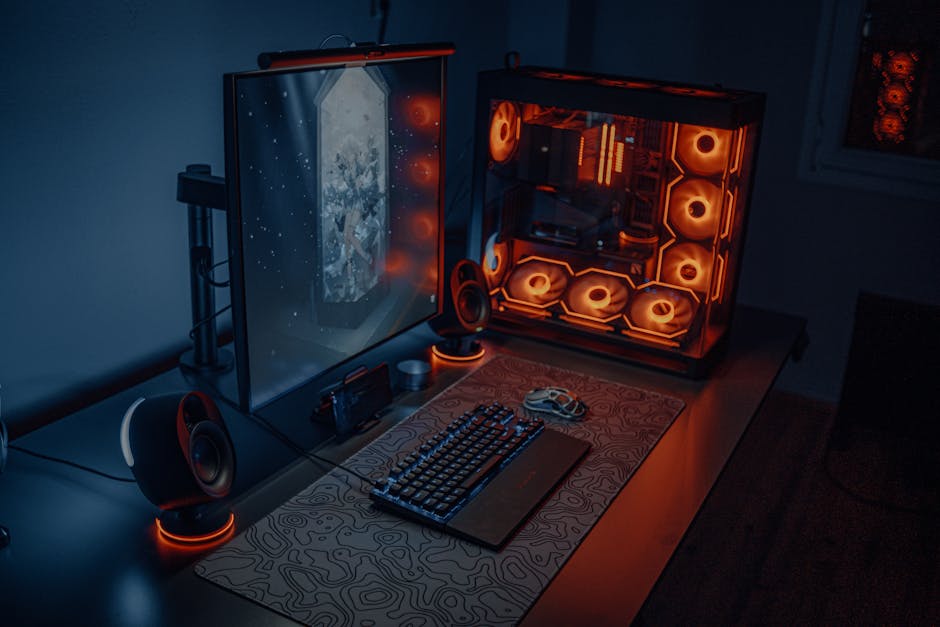
Introduction: Why a High-Performance PC Changes Everything
Building your own gaming PC is one of the most rewarding projects any enthusiast can undertake. A high-performance gaming PC gives you unmatched control over every aspect of your experience — from the framerate you achieve in the latest titles to the visual fidelity you can push your monitor to display. Whether you are diving into fast-paced competitive shooters, exploring massive open worlds in demanding RPGs, or streaming your gameplay to an audience, the right PC setup makes all the difference.
There is a clear advantage to building your own system rather than purchasing a pre-built machine. Pre-built desktops often cut corners on power supplies, use proprietary components that are difficult to upgrade, and bundle software that bogs down performance. When you build your own PC, you handpick every part to match your budget and goals. You understand exactly how your system works, which makes troubleshooting far easier and future upgrades much simpler to plan.
At its core, a high-performance gaming PC revolves around four critical pillars: raw processing power from a modern CPU, stunning visual output from a capable graphics card, fast and responsive memory, and quick storage that minimizes load times. This guide walks you through every stage — from selecting components to fine-tuning your system — so you end up with a machine that plays today’s most demanding titles smoothly and stands ready for tomorrow’s releases.
Choosing the Right Components
The foundation of any great gaming PC starts with the processor. For modern gaming, a six-core or eight-core CPU from either AMD’s Ryzen lineup or Intel’s Core series delivers the threading headroom needed for multitasking while keeping single-threaded game performance high. The AMD Ryzen 5 7600X and the Intel Core i5-13600K represent exc nt mid-range choices that balance cost and performance. If you are building toward the absolute top tier, the Ryzen 9 7950X or Intel Core i9-13900K handle everything from gaming to content creation without breaking a sweat.
Your graphics card is arguably the single most important piece of hardware for gaming visuals. The NVIDIA GeForce RTX 4070 and AMD Radeon RX 7800 XT sit comfortably in the sweet spot for 1440p gaming with ray tracing enabled. For 4K enthusiasts, stepping up to an RTX 4080 or RX 7900 XTX ensures you can run the latest titles at maximum settings without drops in framerate. Always match your GPU choice to your monitor resolution and refresh rate — a card that handles 1440p effortlessly may struggle pushing 4K frames to a high-refresh display.
Random access memory, or RAM, plays a supporting role that is easy to overlook. Most modern games run best with 16 GB of DDR5 memory, and a kit running at 5600 MHz or higher strikes an ideal balance for gaming workloads. Going with 32 GB is a worthwhile investment if you plan to stream, run background applications, or work on creative projects alongside your gaming sessions. Storage is equally important — pair a fast NVMe SSD for your operating system and favorite games with a larger HDD for media storage to get the best of both speed and capacity.
Assembling the PC
Once you have all your components in hand, the assembly process begins. Work on a clean, flat surface with good lighting and gather your tools — a Phillips-head screwdriver and an anti-static wrist strap are the essentials. Start by installing the CPU into the motherboard socket, aligning the triangle markers on the chip and socket before lowering the retention arm. Apply a pea-sized amount of thermal paste to the CPU lid, then mount your CPU cooler according to the manufacturer’s instructions.
Insert your RAM sticks into the appropriate slots on the motherboard, pressing firmly at both ends until the retention clips click into place. Most boards have four slots, and for dual-channel performance, populate slots A2 and B2 (or the second and fourth slots from the CPU) for the best compatibility. Install the NVMe SSD into the M.2 slot on the motherboard, securing it with the small screw included in your motherboard box. Finally, mount the motherboard into your case using the standoff screws that match your form factor, typically ATX.
Connect your GPU into the primary PCIe x16 slot and secure it with a screw or retention bracket. Route your power supply cables carefully — the 24-pin ATX connector, 8-pin CPU power connector, and PCIe power cables from your PSU should reach their respective components without excessive slack. After double-checking all connections, cable management becomes the next priority. Use the routing channels and tie-down points built into your case to bundle cables cleanly behind the motherboard tray. Good airflow depends on keeping cables organized and out of the path of intake and exhaust fans. Once your wiring is tidy, install your operating system via USB drive and begin driver installation.
Optimizing Your PC for Gaming
With Windows installed, your first optimization steps happen inside the BIOS. Enter your BIOS by pressing the designated key during startup — typically Delete or F2 depending on your motherboard manufacturer. Enable XMP or DOCP profiles to ensure your RAM runs at its rated speed rather than defaulting to lower frequencies. If your board supports Resizable BAR, enable that feature to allow your GPU to access the full system memory, improving performance in supported titles.
Keeping your graphics drivers current is one of the simplest and most impactful optimizations you can make. Visit NVIDIA’s GeForce Experience or AMD’s Adrenalin software to automatically download the latest Game Ready drivers for your GPU. These drivers often include performance improvements and bug fixes specific to newly released titles. Beyond GPU drivers, check your motherboard manufacturer’s website for chipset and LAN driver updates that can improve system stability and reduce latency.
For enthusiasts comfortable with advanced tweaks, overclocking your CPU and GPU can squeeze out additional frames. Increasing your GPU core clock by 50–100 MHz and your memory clock by 100–200 MHz through tools like MSI Afterburner is a reasonable starting point. On the CPU side, increment your multiplier slowly and monitor temperatures using software like HWiNFO64. Always stress-test your overclocks with tools like Prime95 or Furmark before relying on them during gameplay, and ensure your cooling solution can handle the extra heat without exceeding safe temperature thresholds.
Essential Software and Utilities
Every gaming PC needs a digital distribution platform to access its library. Steam remains the largest PC gaming storefront, offering automatic updates, community features, and the Steam Overlay for in-game screenshots and voice chat. Epic Games Store, GOG, and Origin (now EA app) round out the ecosystem, each offering exclusive titles and periodic free game giveaways. Install your preferred launcher or launchers, and consider organizing your library into categories to keep hundreds of titles manageable.
System monitoring tools give you real-time visibility into temperatures, clock speeds, and framerates while you play. MSI Afterburner doubles as both an overclocking utility and an on-screen overlay tool, displaying GPU usage, temperature, and current framerate without impacting performance. HWiNFO64 provides deeper hardware telemetry and is especially useful for tracking long-term temperature trends. CAM by NZXT and NZXT CAM are popular alternatives that integrate nicely with NZXT’s ecosystem of hardware.
Driver update utilities streamline the process of keeping every component current. NVIDIA GeForce Experience and AMD Adrenalin Edition both include automatic driver checking and one-click installation. Your motherboard manufacturer likely offers a dedicated utility — ASUS Update, MSI Dragon Center, or Gigabyte APP Center — that handles BIOS updates and firmware management. Running these updates regularly closes security vulnerabilities and can resolve stability issues that manifest only under heavy gaming loads.
Troubleshooting Common Issues
Even well-assembled systems encounter problems from time to time, and knowing how to diagnose them saves hours of frustration. If your PC fails to post — meaning the screen stays dark and you hear no beep codes — reseat your RAM by removing and reinserting it in a different slot. Check that all power connectors are fully seated, including the CPU power cable at the top of the board. A CMOS reset by shorting the CLR_CMOS pins or removing the coin-cell battery for 30 seconds clears corrupted BIOS settings that can prevent startup.
Graphics and sound glitches often stem from outdated or conflicting drivers. Boot into Safe Mode to use Display Driver Uninstaller (DDU) and completely remove your current GPU drivers before reinstalling the latest version from scratch. If you experience audio dropouts or crackling, check that your sound device is set as the default playback device in Windows Sound settings, and update your audio codecs through your motherboard’s driver package or Realtek’s website.
Overheating is a common cause of crashes, stuttering, and unexpected shutdowns during intense gaming sessions. Verify that all case fans are oriented correctly — front intake fans draw cool air in, while rear and top exhaust fans expel warm air out. Inspect your CPU cooler for proper mounting and thermal paste application. If temperatures remain high, consider adding additional case fans, upgrading to a larger air cooler, or switching to an AIO liquid cooling solution. Monitoring software like HWiNFO64 will alert you if your CPU or GPU regularly exceeds 85 degrees Celsius during load.
Final Touches and Accessories
Your PC’s internal performance only matters as much as your ability to interact with it comfortably. A mechanical keyboard with Cherry MX Red or Brown switches offers the responsiveness and durability that competitive gamers demand. Pair it with a high-DPI gaming mouse from brands like Logitech, Razer, or SteelSeries that fits your grip style. A quality gaming headset with a clear microphone ensures you can communicate with teammates without background noise degrading the experience.
Peripherals connect via USB ports, and your motherboard’s rear I/O typically provides six or more high-speed ports. If you need more connections, a USB hub or dedicated audio interface expands your options. Configure your mouse polling rate in its software to 1000 Hz for the most responsive tracking, and program your keyboard macros carefully to avoid accidentally triggering actions during critical moments in gameplay.
Aesthetic customization transforms your build from a functional machine into a personal statement. Addressable RGB LED strips that connect to your motherboard’s ARGB headers fill your case with synchronized color cycles. RGB fans from Corsair, NZXT, or Thermaltake create matching light shows, and software like Corsair iCUE or ASUS Aura Sync ties all compatible components into a unified lighting profile. Custom cable extensions in sleeved colors complement your theme, and tempered glass side panels let you show off your handiwork every time you sit down to play.
Frequently Asked Questions (FAQ)
What are the most important components for a high-performance gaming PC?
The processor and graphics card are the two most impactful components for gaming performance. A modern six-core or eight-core CPU from AMD or Intel handles game logic and threading efficiently, while a capable GPU — such as an NVIDIA RTX 4070 or AMD RX 7800 XT — renders visuals at your target resolution and refresh rate. Fast DDR5 RAM at 16 GB minimum and an NVMe SSD for quick load times round out the core build that powers smooth gameplay across demanding titles.
How do I ensure my PC is running at its full potential?
Enable XMP or DOCP profiles in your BIOS to run your RAM at rated speeds. Install the latest GPU drivers through GeForce Experience or AMD Adrenalin, and keep your chipset and audio drivers current through your motherboard manufacturer’s utility. Monitor your system with tools like MSI Afterburner or HWiNFO64 to confirm temperatures stay within safe ranges during gameplay, and use Windows Game Mode to prioritize resources for your active title.
What should I do if I encounter issues with my gaming PC?
Start by identifying whether the problem is hardware or software related. For hardware issues, reseat components, check cable connections, and verify that all fans are spinning and temperatures are normal. For software problems, update or reinstall drivers, run Windows built-in troubleshooters, and verify game files through your launcher if specific titles are crashing. When in doubt, booting into Safe Mode lets you roll back drivers or run diagnostics without background interference from other applications.
Explore more pc guides on our site.
Top Product Recommendations
| Product Name | Rating | Key Feature | Est. Price | Action |
|---|---|---|---|---|
| Best Pc Pick | ★★★★★ | Top-rated overall | $25–$45 | Check Lowest Price on Amazon |
| Budget Pc Option | ★★★★☆ | Great for beginners | $12–$28 | Check Lowest Price on Amazon |
| Premium Pc Choice | ★★★★☆ | Pro-level results | $50–$90 | Check Lowest Price on Amazon |
Affiliate Disclosure: This post contains affiliate links. We may earn a commission if you buy through our links, at no extra cost to you.
Leave a Reply