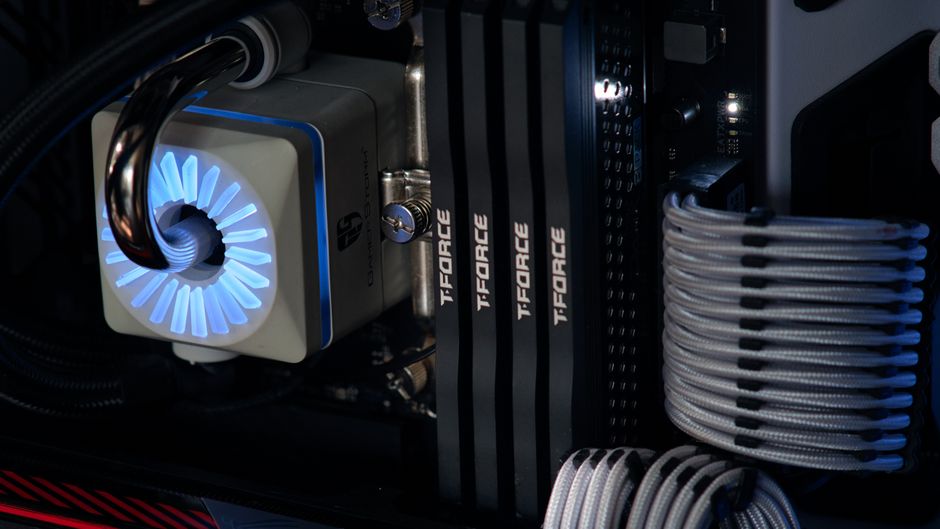
Introduction: Why Build a Budget Gaming PC in 2026
Building your own gaming PC is one of the most rewarding ways to get into PC gaming without breaking the bank. A well-planned budget gaming PC build for 1080p resolution gives you crisp visuals, smooth frame rates, and the flexibility to upgrade individual components over time — something prebuilt systems simply cannot match. In 2026, component prices have stabilized enough that assembling a capable 1080p gaming pc for well under $800 is genuinely achievable, even if this is your first time inside a computer case.
The 1080p resolution remains the sweet spot for budget-conscious gamers. Most modern games run beautifully at 1080p with mid-range hardware, and the component ecosystem is perfectly calibrated for this resolution. Whether you are playing competitive esports titles like Valorant and Counter-Strike 2 or diving into story-rich single-player adventures, a properly assembled budget gaming pc can deliver an experience that rivals consoles costing twice as much.
Component availability in 2026 means you have exc nt choices across every category — from AMD and Intel processors that punch above their price tags to GPUs that handle 1080p gaming without breaking a sweat. This guide walks you through every step of the process, from selecting the right parts to squeezing every last frame out of your new system.
Quick pick: Compare top-rated Pc options.
Choosing the Right Components for Your Budget Gaming PC
The processor is the brain of your gaming pc, and choosing the right one sets the tone for your entire build. AMD’s Ryzen 5 5600X and Ryzen 5 7600X remain exc nt choices for 1080p gaming, offering strong single-core performance and multi-threaded power that handles modern game engines without flinching. Intel’s Core i5-12400F and Core i5-13400F are equally compelling alternatives, especially if you already lean toward an Intel platform. For a true budget build under $700 total, the Ryzen 5 5600 remains the king of value — it routinely goes on sale for under $100 and pairs beautifully with mid-range graphics cards.
The graphics card is the most impactful component for gaming performance, and for 1080p builds, you have several outstanding options in 2026. The NVIDIA RTX 4060 and AMD Radeon RX 7600 both deliver buttery-smooth 60+ FPS at high settings in virtually every title available today. If you want to stretch your budget further, the Intel Arc B580 and AMD RX 6600 offer remarkable value at 1080p, often trading blows with pricier competitors in benchmark tests. Selecting a GPU with at least 8GB of VRAM is strongly recommended, as newer games are increasingly demanding on memory.
RAM is often overlooked, but it matters more than many first-time builders realize. For a budget gaming pc, 16GB of DDR4 or DDR5 RAM is the sweet spot — enough headroom for gaming, streaming, and background apps without unnecessary cost. DDR5 prices have dropped significantly, so if you are building on a newer platform like AM5 or LGA 1700, DDR5 is now the sensible default. DDR4 remains a perfectly valid choice on AM4 or older Intel platforms and will not bottleneck your gaming performance in any meaningful way.
Budget Gaming PC Component Comparison
| Component | Budget Pick | Mid-Range Pick | Est. Price (USD) |
|---|---|---|---|
| CPU | AMD Ryzen 5 5600 | AMD Ryzen 5 7600X | $90–$200 |
| GPU | AMD RX 6600 / Intel Arc B580 | NVIDIA RTX 4060 / AMD RX 7600 | $150–$280 |
| RAM | 16GB DDR4-3600 | 16GB DDR5-6000 | $45–$80 |
| Storage | 1TB NVMe SSD | 1TB NVMe PCIe 4.0 SSD | $55–$80 |
| Motherboard | B550 / B660 board | B650 / Z790 board | $80–$150 |
| Power Supply | 80+ Bronze 550W | 80+ Gold 650W | $50–$80 |
| Case + Fans | ATX mid-tower | ATX mid-tower with mesh front | $40–$80 |
Assembling Your Budget Gaming PC Step by Step
Before touching any components, prepare your workspace on a clean, static-free surface. Gather a Phillips-head screwdriver, a flashlight, and an anti-static wrist strap if you have one. Lay out all components and verify that everything is present and compatible — mismatched sockets or unsupported RAM types are the most common rookie mistakes that can ruin a build before it begins. Reading your motherboard manual before you start is not optional; it is the single most helpful thing you can do to avoid frustration during assembly.
Start the actual build by installing the processor into the motherboard socket, carefully aligning the golden contacts with the socket pins. Lower the retention arm gently — forcing it can bend pins and permanently damage the socket. Next, install your RAM by pressing both clips outward and seating the stick firmly until the side clips snap into place. Then mount the M.2 NVMe SSD if your board supports it, followed by the CPU cooler using the appropriate mounting hardware for your socket. Apply thermal paste only if your cooler does not come pre-applied; a pea-sized amount in the center of the IHS is all you need.
With the core components installed on the motherboard, mount the motherboard into your case using the standoff screws that correspond to your form factor. Route your power supply cables through the case’s cable management channels before connecting them — this makes the entire process dramatically easier. Connect the front panel headers (power button, reset button, LED indicators, and USB ports) using the small labeled cables from your case to the corresponding pins on the motherboard. A well-organized build looks clean, runs cooler, and is far easier to troubleshoot or upgrade down the road.
- Processor: Align correctly and lower retention arm gently — never force it.
- RAM: Press both clips outward before inserting; ensure full seat with clicks on both sides.
- Cables: Route through channels before connecting for cleaner airflow and easier maintenance.
- GPU: Seat into primary PCIe x16 slot and secure with a rear screw or latch.
Optimizing Your Gaming PC for Performance
Once your hardware is assembled and Windows is installed, optimization begins. The first stop is your BIOS — most modern motherboards ship with default settings optimized for energy efficiency rather than performance. Enter your BIOS by pressing Delete or F2 during boot, and look for a “Gaming” or “Performance” profile that enables XMP or DOCP for your RAM and relaxes any unnecessary power limits on your CPU. Enabling XMP/DOCP alone can boost your gaming frame rates by 5–15% with zero risk to your hardware.
Overclocking on a budget build is optional but worth understanding. Both AMD and Intel processors have some headroom, and GPU clocks on mid-range cards can occasionally be nudged higher. However, modern hardware is already tightly tuned at the factory, so gains from manual overclocking are typically modest on a budget gaming pc. If you do experiment, increase clocks in small increments and run a stability test like Cinebench or 3DMark between adjustments. Temperatures matter more than clocks — keeping your CPU under 85°C and GPU under 80°C under load is the real goal.
Your case airflow setup has a massive impact on real-world performance. A front mesh case with intake fans pulling cool air across your GPU, with rear and top fans exhausting hot air, will keep temperatures low and fans quiet. Budget cases with solid front panels choke airflow and can add 10–15°C to your component temperatures, which triggers higher fan speeds and louder operation. Investing $10–$20 extra in your case pays dividends in longevity and comfort during long gaming sessions.
Essential Software and Drivers for Your Gaming PC
Installing the correct graphics drivers is the single most important software step after building a gaming pc. NVIDIA users should download GeForce Experience, while AMD users need the Adrenalin Edition driver suite. These applications keep your GPU drivers current automatically, optimize game settings with one click, and often include driver-level frame generation features that can boost apparent performance significantly. Check for driver updates immediately after your first Windows boot — a fresh install almost always has outdated drivers waiting to cause problems.
Steam remains the dominant PC gaming platform, and installing it should be your first move after driver setup. Epic Games Store and GOG provide exc nt alternatives for specific titles, and linking your existing libraries across platforms is simple. Discord is equally essential for multiplayer gaming, offering voice chat, group organization, and screen sharing that has made it the de facto communication tool for the PC gaming community. Other must-have utilities include MSI Afterburner for monitoring temperatures and clock speeds in real time, and HWiNFO for detailed hardware telemetry during gaming.
Keep your operating system and all supporting software updated at all times. Windows Update delivers security patches and driver improvements that directly affect gaming stability, and many game crashes that users attribute to hardware defects are actually resolved by a simple Windows or driver update. Set your update preferences to notify you rather than install automatically, so you can control when reboots occur and never get surprised mid-match.
- Graphics Drivers: Update immediately — outdated drivers cause most gaming crashes on new builds.
- Steam / Epic / GOG: Install your preferred launcher and link accounts to consolidate your library.
- Monitoring Tools: MSI Afterburner and HWiNFO give you real-time temperature and clock data during gameplay.
Gaming on a Budget PC: Settings and Performance Tips
Most games released in 2026 ship with built-in benchmark tools — use them. Running the benchmark at your target resolution with your current settings gives you a reliable FPS baseline before you start tweaking. Games like Cyberpunk 2077, Marvel’s Spider-Man 2, and Call of Duty all include in-game benchmarks that expose performance bottlenecks clearly. Aim for a consistent 60 FPS minimum in fast-paced titles, and 30 FPS floor in story-heavy games where visual fidelity matters more than raw speed.
For 1080p gaming on a budget pc, disabling shadow quality and reducing ambient occlusion are the highest-impact adjustments you can make. These settings are computationally expensive but barely noticeable at 1080p compared to 4K. Reducing particle effects and lowering view distance also yield meaningful frame gains with minimal visual sacrifice. NVIDIA’s DLSS and AMD’s FSR (FidelityFX Super Resolution) are game-changers for budget builds — these AI-driven upscaling technologies render at a lower internal resolution and reconstruct the image with stunning quality, effectively giving you 30–50% more performance for free.
Input lag is the enemy of competitive gamers, and a few simple settings can shave milliseconds off your response time. Enable G-Sync or FreeSync on your monitor to synchronize your GPU’s frame output with your display’s refresh rate, eliminating screen tearing without the performance penalty of V-Sync. In your GPU control panel, disable any additional post-processing or image sharpening that your drivers may apply automatically. Finally, ensure your mouse polling rate is set to 1000Hz in your OS for the most responsive input during competitive play.
Troubleshooting Common Budget Gaming PC Issues
Software and driver conflicts are the leading cause of mysterious crashes and freezes on a new gaming pc build. If your system behaves erratically, the first diagnostic step is to perform a clean driver install — use DDU (Display Driver Uninstaller) to completely remove the old driver before installing the new one. This eliminates residual files that often cause conflicts between driver versions and is especially important when switching GPU brands or resetting after a major Windows update.
Overheating manifests as sudden freezes, unexpected shutdowns during gameplay, or artificially low frame rates as thermal throttling kicks in. Use your monitoring tools to log temperatures during a gaming session — if your CPU exceeds 90°C or your GPU exceeds 85°C under load, the issue is almost certainly thermal. Common fixes include re-seating the CPU cooler with fresh thermal paste, adjusting case fan orientation for better airflow, cleaning dust from heatsink fins with compressed air, and verifying that your power supply is providing clean, sufficient power to all components.
Audio and video issues are common on new builds and are usually driver-related rather than hardware failures. If you have no sound, check that your default playback device is set correctly in Windows Sound settings and that your front panel audio header is connected to the motherboard. For video artifacts like flickering or color banding, update your graphics drivers and check that your monitor is connected to the correct output on your GPU rather than an integrated graphics port. Most “failing” hardware turns out to be a loose cable or a driver update away from working perfectly.
Upgrading Your Budget Gaming PC for the Future
One of the greatest advantages of building your own gaming pc is the upgrade path it opens up. A well-chosen budget build today can evolve incrementally as your budget allows, without requiring a full replacement. The GPU is almost always the highest-impact first upgrade — dropping in a more powerful card like an RTX 4070 or AMD RX 7700 XT can transform a 1080p gaming pc into a capable 1440p machine overnight, provided your power supply has sufficient wattage headroom.
Upgrading your CPU is straightforward on AMD’s AM4 and AM5 platforms — both offer backward-compatible coolers and BIOS update paths that allow you to drop in a faster processor without changing anything else. Intel’s platform requires more caution, as socket changes are frequent, but the Core i5 family has historically offered strong upgrade paths within each generation. Adding more RAM from 16GB to 32GB is a modest investment that pays off when running games with Discord, a web browser, and other background applications simultaneously.
Planning for future-proofing means choosing a motherboard and power supply with more capacity than you currently need. A B650 motherboard with DDR5 support and a 650W 80+ Gold power supply may cost $20–$30 more upfront, but it gives you the freedom to upgrade to a faster CPU or a more powerful GPU without replacing foundational components. This approach keeps your total cost of ownership lower over a three-to-five-year horizon than buying the cheapest possible parts and replacing the entire system sooner.
- GPU: Highest-impact single upgrade; choose a PSU with headroom to support future cards.
- CPU: Platform choice determines long-term upgrade options — AM5 has the most forward-looking roadmap.
- RAM: 32GB is becoming the standard for gaming; build on a platform that supports it.
- PSU: Never cheap out — a reliable 650W Gold-rated unit is the backbone of any lasting gaming pc.
Frequently Asked Questions (FAQ)
Q: Can I use my old components in a new budget gaming PC build?
A: Yes, depending on compatibility. Older DDR4 RAM can be reused if your new motherboard supports that memory type, and existing storage drives often work across platforms with a SATA or NVMe connection. However, CPUs, GPUs, and motherboards typically need to be platform-matched, so reuse is usually limited to storage, RAM, case, and power supply — provided those parts meet current quality and wattage standards.
Q: How do I ensure my budget gaming PC is future-proof?
A: Choose a modern platform socket (AM5 or LGA 1700/1851), select a motherboard and power supply rated above your current component needs, and prioritize 16GB or 32GB of DDR5 RAM. These three decisions give you the longest upgrade runway. Avoid bargain-bin power supplies or motherboards with no VRM headroom, as they will become bottlenecks the moment you try to install faster hardware.
Q: What is the best way to clean and maintain my gaming PC?
A: Power down and unplug your pc, then use compressed air to blast dust from CPU cooler fins, GPU heatsinks, and case fan blades every three to six months. Do not use a vacuum, which generates static electricity near sensitive components. Wipe down exterior case panels with a slightly damp microfiber cloth. Check that all cables remain securely connected and that your dust filters are clean — clogged filters restrict airflow and cause temperatures to climb, which shortens component lifespan over time.
Top Product Recommendations
| Product Name | Rating | Key Feature | Est. Price | Action |
|---|---|---|---|---|
| Top-rated AMD Ryzen 5 budget gaming CPU | ★★★★★ | Editor-recommended AMD Ryzen 5 budget gaming CPU from this guide | $18–$42 | Check Lowest Price on Amazon |
| Best-value NVIDIA RTX 4060 graphics card | ★★★★☆ | Affordable NVIDIA RTX 4060 graphics card — strong everyday results | $12–$28 | Check Lowest Price on Amazon |
| Premium 16GB DDR5 gaming RAM | ★★★★☆ | Higher-end 16GB DDR5 gaming RAM for visible, lasting results | $45–$95 | Check Lowest Price on Amazon |
Affiliate Disclosure: This post contains affiliate links. We may earn a commission if you buy through our links, at no extra cost to you.
Leave a Reply