

Understanding the PC Gaming Landscape
Building a high-performance gaming PC has become more accessible than ever for enthusiasts across the United States. The PC gaming market offers incredible flexibility, allowing gamers to customize their systems to match specific performance needs and budget constraints. Whether you’re aiming for smooth 1080p gaming or pushing the boundaries with 4K resolution at high frame rates, understanding your components is essential.
The beauty of PC gaming lies in its modularity. Unlike consoles, you can upgrade individual components as technology advances or as your gaming demands increase. This guide walks you through everything you need to know about building or selecting a gaming PC that delivers exceptional performance.
Quick pick: Compare top-rated Pc options.
Key Components for High-Performance Gaming
The **CPU (processor)** serves as your gaming PC’s brain. Intel and AMD both offer exc nt gaming processors, with Intel’s Core i5/i7/i9 series and AMD’s Ryzen 5/7/9 lineup providing strong performance across different price points. For high-end gaming, aim for at least 6 cores with boost clocks above 4.0 GHz. Modern games increasingly utilize multiple cores, making this investment worthwhile.
Your **GPU (graphics card)** determines gaming performance more than any other component. Nvidia’s GeForce RTX series and AMD’s Radeon RX cards both deliver exceptional frame rates. For 1080p gaming at high settings, consider mid-range options like the RTX 4060 or RX 7600. For 1440p or 4K gaming, step up to RTX 4070/4080 or RX 7800/7900 models. VRAM matters too—8GB minimum for current games, 12GB or more for future-proofing.
**RAM (memory)** directly impacts game loading times and multitasking capability. Modern gaming PCs need at least 16GB of DDR4 or DDR5 RAM, with 32GB becoming the sweet spot for enthusiasts who stream or run background applications. Speed matters—look for DDR4-3200 or DDR5-5600 as baseline specifications. Dual-channel configuration (two sticks) provides better performance than single-channel setups.
**Storage** choices significantly affect load times and overall system responsiveness. NVMe SSDs have become the standard for gaming, offering read speeds exceeding 3,000 MB/s compared to traditional HDDs at 150 MB/s. Install your operating system and frequently played games on a 500GB-1TB NVMe SSD. Add a larger SATA SSD or HDD for game library storage if needed.
Building vs. Buying Pre-Built Gaming PCs
Custom-building your gaming PC offers maximum flexibility and often better value. You select every component, ensuring compatibility and avoiding proprietary parts. The building process itself teaches valuable troubleshooting skills. However, it requires research time and careful assembly—incorrectly installed components can cause performance issues or hardware damage.
Pre-built gaming PCs from reputable manufacturers provide convenience and warranty coverage for the entire system. They arrive ready to game with tested component combinations. The tradeoff comes in reduced customization options and sometimes inflated prices for equivalent hardware. Pre-builts often include bloatware and may use cheaper components for power supplies or motherboards.
For 4K gaming or VR compatibility, prioritize GPU power above all else. VR headsets like the Meta Quest or Valve Index require consistent high frame rates—aim for RTX 4070 or better. High-refresh 4K monitors demand even more GPU horsepower. Balance your budget by investing heavily in the graphics card while choosing solid mid-range options for CPU and other components.
**Cooling system** selection impacts both performance and noise levels. Air coolers provide reliable, affordable cooling with minimal maintenance. Tower-style air coolers from brands like Noctua or be quiet! handle most gaming CPUs effectively. Liquid cooling (AIO units) offers better thermal performance for overclocking and a cleaner aesthetic. Ensure your case has adequate airflow with at least two intake and two exhaust fans.
Essential Gaming Peripherals and Accessories
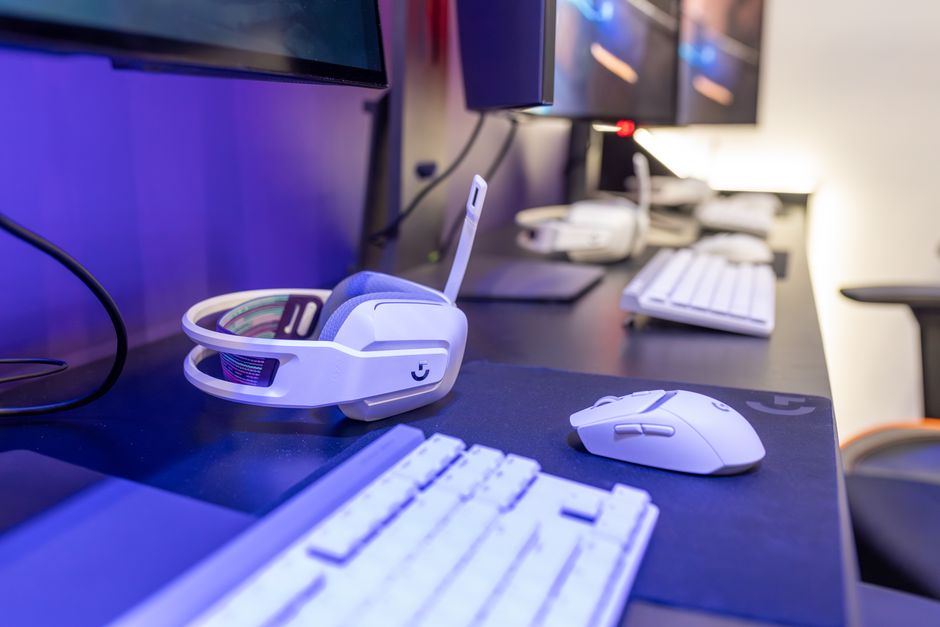
Your **gaming keyboard** should match your play style. Mechanical keyboards with Cherry MX or equivalent switches provide tactile feedback and durability. Linear switches (Red) suit fast-paced shooters, while tactile switches (Brown) work well for mixed gaming and typing. Consider keyboards with programmable macros for MMOs or MOBAs.
**Gaming mice** require precise sensors and comfortable ergonomics. Modern optical sensors from PixArt or proprietary designs deliver flawless tracking up to 20,000+ DPI. Most gamers use 400-1600 DPI for actual gameplay. Wireless gaming mice now match wired latency, offering cable-free convenience. Look for mice with programmable buttons and adjustable weight systems.
**Headsets** provide immersive audio and clear team communication. Stereo headsets offer exc nt positional audio through quality drivers and software processing. Surround sound features can help in competitive games but aren’t essential. Comfort matters for long sessions—memory foam earpads and adjustable headbands prevent fatigue. Consider open-back designs for better soundstage if you game in quiet environments.
**Monitor selection** dramatically impacts your gaming experience. Resolution, refresh rate, and panel technology all matter. For competitive gaming, prioritize 144Hz+ refresh rates at 1080p. For immersive single-player games, consider 1440p at 120Hz or 4K at 60Hz+. IPS panels offer best color accuracy, VA panels provide deep blacks, and TN panels deliver fastest response times. Screen size between 24-27 inches suits most desk setups.
Optimizing Gaming PC Performance
**Driver updates** directly impact gaming performance and stability. Graphics card manufacturers release game-ready drivers that optimize performance for new titles. Check Nvidia GeForce Experience or AMD Software monthly for updates. Motherboard chipset drivers and audio drivers also deserve regular updates—download these from your motherboard manufacturer’s website.
**Operating system maintenance** keeps your gaming PC running smoothly. Windows updates include security patches and performance improvements. Enable automatic updates for convenience, but monitor for problematic patches. Keep game clients like Steam, Epic Games Launcher, and Battle.net updated automatically. Disable unnecessary startup programs to free up system resources.
**Physical cleaning** prevents performance throttling from dust buildup. Power down and unplug your PC before cleaning. Use compressed air to blow dust from case fans, heatsinks, and GPU coolers every 3-6 months. Clean intake filters more frequently if you have pets or carpeted rooms. Proper airflow maintains optimal component temperatures and extends hardware lifespan.
Troubleshooting Common Gaming PC Issues
**Overheating** causes performance drops and system instability. Monitor temperatures using HWMonitor or MSI Afterburner during gaming sessions. CPU temperatures should stay below 80°C, GPUs below 85°C under load. If temperatures exceed these limits, check that all fans spin properly. Reapply thermal paste on CPU coolers older than 2-3 years. Improve case airflow by adding fans or removing dust buildup.
**Software conflicts** manifest as crashes, stuttering, or reduced frame rates. Background applications consume CPU and RAM resources—close unnecessary programs before gaming. Antivirus software sometimes interferes with games—add game executables to exclusion lists. RGB lighting software from different manufacturers can conflict—use only necessary utilities. Windows Game Mode helps prioritize gaming performance.
**Hardware compatibility problems** typically appear immediately after upgrades. RAM compatibility issues cause boot failures or system crashes—verify your motherboard’s QVL (Qualified Vendor List) before purchasing memory. Power supply wattage matters—high-end GPUs require 650W-850W PSUs with proper PCIe connectors. Update motherboard BIOS before installing new-generation CPUs to ensure compatibility.
Upgrading and Maintaining Your Gaming PC
**Component upgrade timing** depends on your performance targets and budget. GPUs typically warrant upgrades every 3-4 years as newer games demand more graphical power. CPUs last longer—5-6 years for mid-range processors before becoming bottlenecks. Upgrade RAM when you consistently use over 80% during gaming. Storage upgrades provide immediate quality-of-life improvements through faster load times.
**Maintenance tasks** preserve hardware longevity and performance. Beyond cleaning, monitor drive health using CrystalDiskInfo for early failure warnings. Check PSU cables remain securely connected after moving your PC. Verify case fan speeds in BIOS—bearing wear causes noise increases over time. Cable management improves airflow and simplifies future upgrades. Back up important save files to cloud storage or external drives regularly.
Frequently Asked Questions
What is the best CPU for high-performance gaming PCs?
A: For high-performance gaming, Intel Core i7-14700K or AMD Ryzen 7 7800X3D represent exc nt choices in 2024. The i7-14700K offers strong multi-threaded performance for streaming and productivity tasks alongside gaming. The Ryzen 7 7800X3D’s 3D V-Cache technology provides exceptional gaming frame rates, often outperforming more expensive CPUs in game benchmarks. Both require appropriate cooling and motherboard investments but deliver smooth performance at 1440p and 4K resolutions.
How important is RAM when it comes to gaming?
A: RAM significantly impacts gaming performance, particularly in modern titles that use 10GB+ at high settings. 16GB represents the minimum for current gaming, while 32GB provides headroom for multitasking, streaming, and future releases. RAM speed affects performance too—faster memory (DDR4-3600 or DDR5-6000) can improve frame rates by 5-15% in CPU-bound scenarios. Running dual-channel configuration (two matched sticks) delivers better performance than single-channel setups at identical capacities.
Should I choose an SSD or HDD for my gaming PC?
A: Choose an NVMe SSD for your primary drive and active games without question. SSDs reduce game load times from minutes to seconds compared to HDDs, eliminate texture pop-in issues, and dramatically improve overall system responsiveness. Modern games increasingly require SSDs for optimal performance—some titles like DirectStorage-enabled games won’t run properly on HDDs. Reserve HDDs only for mass storage of archived games or media files where access speed matters less than capacity per dollar.
Top Product Recommendations
| Product Name | Rating | Key Feature | Est. Price | Action |
|---|---|---|---|---|
| Best Pc Pick | ★★★★★ | Top-rated overall | $25–$45 | Check Lowest Price on Amazon |
| Budget Pc Option | ★★★★☆ | Great for beginners | $12–$28 | Check Lowest Price on Amazon |
| Premium Pc Choice | ★★★★☆ | Pro-level results | $50–$90 | Check Lowest Price on Amazon |
Affiliate Disclosure: This post contains affiliate links. We may earn a commission if you buy through our links, at no extra cost to you.